
Shopify local-order routing works by watching new orders, filtering them down to the postal codes you actually service, and dropping each match into a Google Sheet your local team works from. A live automation does this every 15 minutes, flags which install add-ons each order includes, and exposes the result as a read-only API other tools can read. If you run a Shopify store with a local delivery or install service and your team is scanning the full order feed to find the orders that are theirs, this guide covers the exact build we shipped for BlackBoxMyCar, a Canadian car-accessory retailer. Case study: this is a live production deployment powering BlackBoxMyCar's Metro Vancouver install workflow.
The problem it solves
Shopify is built to show you every order. That is the right default for a store, and the wrong one for a local operation inside that store. If most of your orders ship nationally but a slice of them are local delivery or in-home install, the local team has to hunt their orders out of the full feed, every day.
BlackBoxMyCar sells across the country on Shopify, but also runs a local install service in one metro region. The install crew only cares about the orders in their service area that include the right hardware. Finding those meant a person opening Shopify, eyeballing shipping addresses, checking which products were on each order, and copying the relevant ones into a working list. It is slow, it is error-prone, and an order missed in the scan is an install that does not get scheduled.
Shopify has no native way to say "show me only paid orders in these postal codes that are not store pickup, and tell me which add-ons each one has, in a sheet my crew can work from." That filtered, enriched, local-only view is exactly the gap.
| Task | Manual on Shopify | Automated with Make.com |
|---|---|---|
| Find local-area orders | Eyeball every shipping address | Filtered by postal code automatically |
| Exclude pickup and refunds | Remember to skip them | Dropped by a rule |
| Know which add-ons are on it | Open each order and check | Flagged on the row |
| Get it to the crew | Copy into a working list | Appears in their sheet in ~15 min |
| Orders missed | Whatever the scan misses | None, every match is captured |
The automation replaces the daily scan of the full Shopify feed for the handful of orders that are actually local.
What automating one manual process is worth
Move the sliders to your own numbers. The defaults are only an example business, not client data.
Revenue the freed hours could earn each year
$41,600
8 hrs a week × 52 × $100
- Cost of errors and rework each year
- $6,000
- $500 a month × 12
- Staff cost of doing it by hand each year
- $14,560
- 8 hrs a week × $35/hr × 52 weeks
- Hours handed to the system each month
- 35 hrs
- 8 hrs a week × 52 ÷ 12
How the automation works
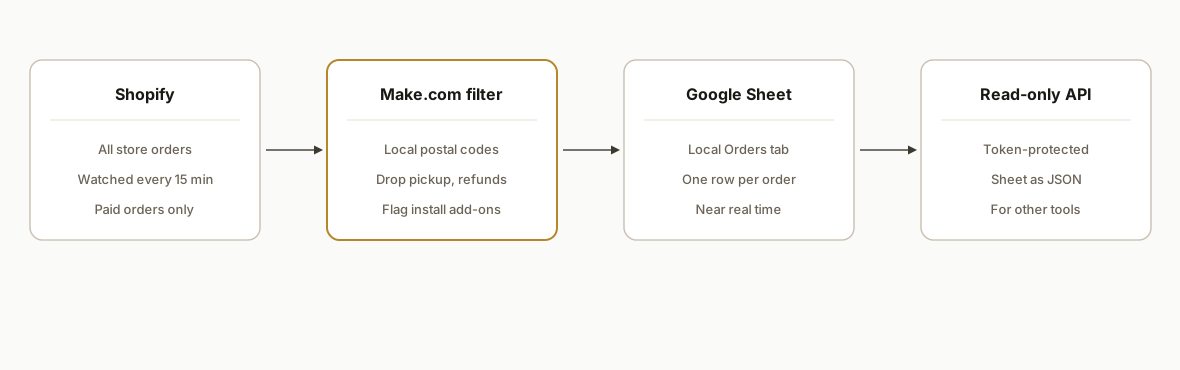
The pipeline watches Shopify, applies the local filter, enriches each order, and writes it to a sheet, on a 15-minute loop. No one opens Shopify to find these orders anymore.
- Shopify. The order source. A watch trigger picks up new paid orders as they come in.
- Make.com filter. The rule layer. It keeps only orders whose postal code is in the service area, drops anything cancelled, refunded, or marked store pickup, and flags which install add-ons each order contains.
- Google Sheet. The crew's workspace. Each qualifying order becomes one row on a dedicated Local Orders tab, in near real time.
- Read-only API. The bridge. A small web-app endpoint exposes that sheet as a token-protected, read-only feed, so other tools or dashboards can pull the local orders without touching Shopify directly.
Step-by-step: how to build it
Step 1: Watch Shopify orders
In Make.com, use the Shopify watch-orders trigger on the store, polling on a short interval (we run every 15 minutes, a small batch per poll). This is the one place that talks to Shopify, and it only reads, so the automation can never change an order.
Step 2: Filter to the orders that are actually local
This is the core of the build. Keep an order only if its shipping postal code matches your service area, and drop the noise.
KEEP the order when ALL are true:
  - shipping postal code starts with one of your local prefixes (e.g. "V")
  - financial_status is "paid"
  - NOT cancelled and NOT refunded
  - delivery is NOT store pickup / local storefront
Postal-code prefix matching is the cheapest reliable way to define a metro service area. For Canada, the first letter or two of the postal code maps cleanly to a region.
Step 3: Flag the add-ons on each order
The crew needs to know not just that an order is local, but what it requires. Scan the line items and set a flag for each install-relevant add-on (for this retailer, things like a hardwire kit or a battery pack), so the row tells the crew what the job involves before they open anything.
batteryPack  = lineItems.some(li => /battery/i.test(li.title))
hardwireKit  = lineItems.some(li => /hardwire/i.test(li.title))
Step 4: Append one row per order to the sheet
Write each surviving, enriched order as a single row on a dedicated tab (we used a Local Orders tab). One row per order, columns for the address, the add-on flags, and the order details the crew needs.
Step 5: Expose the sheet as a read-only API
A Google Apps Script web app published as a doGet endpoint turns the sheet into a token-protected, read-only JSON feed. Now a dashboard, a scheduler, or any other tool can read the local orders without a Shopify connection or a Google login.
function doGet(e) {
  if (e.parameter.token !== getApiToken()) return json({ error: "unauthorized" }, 401);
  const rows = SpreadsheetApp.getActive().getSheetByName("Local Orders").getDataRange().getValues();
  return json({ orders: rowsToObjects(rows) });
}
Step 6: Run a backup sink
Point a second, identical scenario at a different store (a Make Data Store) so that if the Google Sheets connection ever drops, no local order is lost while you fix it. The crew works off the sheet; the backup is the safety net.
Where it gets complicated
Defining the service area precisely. Postal-code prefixes are simple but blunt. A metro region usually spans several prefixes, and the edges (a neighboring city you do not service) need explicit handling. Getting the prefix list right, and writing it down as part of the integration, is what keeps the crew from being handed an order an hour outside their range.
Pickup, refunds, and cancellations. A store-pickup order has a local address but is not a delivery or install job. A refunded order should never reach the crew. These exclusions are easy to forget and embarrassing to miss, because they put non-jobs on the crew's list. Each one is an explicit rule, not an afterthought.
Add-on detection from messy line items. Product titles are not standardized. Matching "hardwire" or "battery" by keyword works until a product is renamed or a bundle hides the add-on inside a kit. The flag logic needs to be reviewed whenever the catalog changes, or the crew stops trusting the flags.
Connection ownership. The Shopify and Google connections are owned by specific accounts. At launch you have to move them onto the client's own accounts and re-authorize, or the whole thing quietly stops the day a personal token is revoked. Connection ownership is a launch step, not a detail.
Polling versus webhooks. A 15-minute poll is simple and reliable and good enough for an install queue. If you need an order on the crew's sheet within seconds, you switch the trigger to a Shopify webhook, at the cost of a little more setup. Match the latency to how fast the work actually moves.
Real-world results
BlackBoxMyCar now has every local-area order land on the crew's sheet within about 15 minutes of being placed, already flagged for the add-ons it includes, with pickups and refunds filtered out. Before this, the same list came from a person scanning the full Shopify order feed and copying the relevant orders by hand.
The structural win is that the local team works from a view that is only their orders, enriched with what they need to know, instead of filtering the whole store in their heads every day. The read-only API on top means the next tool the business builds, a scheduling board or a route planner, can read the same local-orders feed without anyone re-solving the Shopify connection.
The reason it holds up is that it only reads from Shopify and never writes back, so Shopify stays the system of record. The automation is a filter and a courier sitting beside the store, not a change to it.
Frequently asked questions
Can Shopify filter orders by postal code or region automatically?
Not into a separate working list on its own. Shopify shows all orders and offers some manual filtering in the admin, but it will not continuously route just the orders in your service area into a sheet or feed your local team can work from. A Make.com scenario watching orders and filtering by postal-code prefix gives you that local-only, always-current view.
How do I export Shopify orders to Google Sheets automatically?
Use a Make.com (or similar) scenario with a Shopify watch-orders trigger and a Google Sheets add-row action. The scenario runs on a schedule, and you can insert a filter step in between so only the orders you care about (for example, paid orders in your delivery area) get written. Each new order becomes a row with no manual export.
How often does it sync?
We run it every 15 minutes, which is right for a delivery or install queue. The trigger pulls new orders since the last run, filters them, and appends the matches, so the sheet trails real orders by minutes. If you need near-instant routing, swap the polling trigger for a Shopify webhook so each order is pushed the moment it is placed.
What does this cost to run per month?
The main cost is a Make.com plan sized to your order volume, which for a local slice of a store sits on a low tier, plus a free Google Sheet and a free Apps Script web app. There is no separate server. Against the cost of an install job missed because it was overlooked in the feed, the monthly run cost is negligible.
Can it do more than route to a sheet?
Yes. The same filtered, enriched local-order feed can trigger an SMS to the crew, create a job in a scheduling tool, or update a dashboard. The sheet plus read-only API is the foundation; once the local orders are isolated and structured, anything downstream can consume them.
If you run a Shopify store with a local delivery or install arm and your team is still hunting their orders out of the full feed, this filter-and-route pattern hands them a clean, current, local-only list. See how we approach workflow automation, read more on the tools that connect your apps, or book a 20-minute call and we will tell you in the first five minutes whether your Shopify ops map to this pattern.
Integration we have built
Shopify to Google Sheets: the build at a glance
Want us to build this for you?
Nine questions, about 90 seconds. You see the revenue it is costing you, then pick a time. No pitch.
See your options