
We built and shipped a Jotform to Google Sheets integration that stayed in sync when submissions were edited, updated the original row instead of adding duplicates, and kept file upload links usable outside a logged-in Jotform account. This guide is for teams who already rely on Jotform Tables but need a clean, always-current Google Sheet.
Jotform to Google Sheets sync is: a webhook plus upsert pipeline that writes each submission to a single row keyed by its Submission ID, updates that row on edit, and stores file URLs that stay clickable.
The problem it solves
You can connect Jotform to Google Sheets in a minute, but three things typically break at scale: edits create confusion or duplicates, attachment links stop working for teammates, and backfills drift from the live pipe.
| Manual process | Automated sync |
|---|---|
| Copy CSVs from Jotform Tables. Paste into a master Sheet. Hand-merge edits. | Webhook on submit and edit. One row per Submission ID updated in place. |
| Attachment links require a logged-in Jotform user to open. | File links remain public per your Jotform privacy setting, stored alongside the row. |
| Backfills overwrite or duplicate rows. | Safe backfill reconciles by Submission ID and preserves current data. |
How the automation works
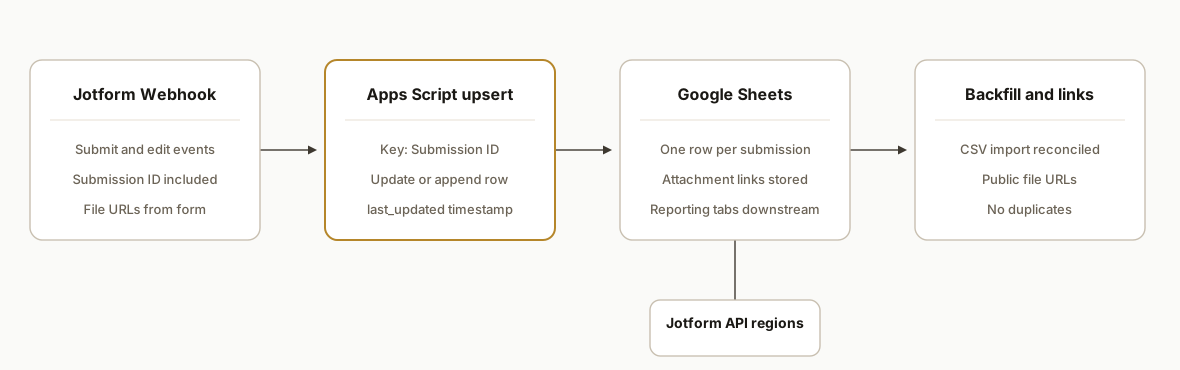
Answer first: we use a Jotform Webhook for new and edited submissions, key every row by the Submission ID column, and perform an upsert into Google Sheets. Attachments remain usable by turning off the Jotform setting that requires login to view uploaded files, then storing those URLs in the sheet. For historical data, we run a one-time CSV import from Jotform Tables and reconcile by the same key.
- Jotform Webhook: Jotform can POST submission data to an endpoint you control. We treat both first-time submits and edits the same: same key, same row gets updated. Jotform also offers an API with base URLs at api.jotform.com, eu-api.jotform.com, and hipaa-api.jotform.com with API key authentication when you need programmatic reads.
- Row key: Submission ID: The integrated sheet includes the Submission ID. We use that as the stable key to find and update the correct row rather than appending new rows.
- Attachment links policy: By default file URLs may require a logged-in Jotform account. We disable Require Log-in to View Uploaded Files so links work for anyone with the URL, then store them in Sheets.
- Google Sheets sink: A bound Apps Script web app receives the webhook and performs an idempotent upsert. We record a last_updated timestamp for auditing.
- Backfill path: We export a CSV from Jotform Tables and import it once, reconciling by Submission ID so historical rows land in the same sheet and future webhooks only update in place.
Step-by-step: how to build it
1) Prepare Jotform for reliable downstream links
Set Jotform privacy so file URLs work in Sheets and zaps. In Jotform settings, turn off Require Log-in to View Uploaded Files. Add a Webhook to your form that points to your endpoint. Edits to a submission update the existing row in Jotform's native integration, and we mirror that behavior in our pipeline.
Jotform settings:
- Settings: Form Settings: Show More Options: Require Log-in to View Uploaded Files: Off
- Settings: Integrations: Webhooks: Add Webhook -> https://your-endpoint.example.com/jotform
Key gotcha: inline edits made directly in Jotform Tables do not sync to Google Sheets. Edits to the submission itself do. Design your process around editing the submission record when you want downstream updates.
2) Create the destination Google Sheet and key column
Create a Google Sheet with headers that match your form fields plus two operational columns: submission_id and last_updated. Do not rename headers created by integrations, and avoid filters or manual edits on the integrated worksheet because those changes can break syncs.
Headers example:
submission_id | name | email | phone | upload_files | notes | last_updated
Gotcha: when you use Jotform's native Google Sheets integration to an existing spreadsheet, it creates a new worksheet for that form's data. Plan your backfill and reporting tabs accordingly.
3) Deploy a Google Apps Script Web App to upsert by Submission ID
We receive the Jotform Webhook in Apps Script and upsert into the sheet. This keeps everything on Google's side and avoids extra auth dance.
// File: Code.gs (bound to the destination Sheet)
const SHEET_NAME = 'Form Responses';

function doPost(e) {
  const sheet = SpreadsheetApp.getActive().getSheetByName(SHEET_NAME);
  const payload = JSON.parse(e.postData.contents || '{}');
  const data = normalizeJotform(payload); // map fields -> headers
  const id = String(data.submission_id || '');
  if (!id) return ContentService.createTextOutput('missing id').setMimeType(ContentService.MimeType.TEXT);

  const headers = sheet.getRange(1,1,1,sheet.getLastColumn()).getValues()[0];
  const idCol = headers.indexOf('submission_id') + 1;
  const lastRow = sheet.getLastRow();
  let rowIndex = -1;
  if (lastRow > 1 && idCol > 0) {
    const ids = sheet.getRange(2, idCol, lastRow-1, 1).getValues().map(r => String(r[0]));
    const pos = ids.indexOf(id);
    if (pos >= 0) rowIndex = pos + 2; // account for header
  }

  // Build row array in header order
  const row = headers.map(h => h === 'last_updated' ? new Date() : (data[h] ?? ''));

  if (rowIndex > 0) {
    sheet.getRange(rowIndex, 1, 1, headers.length).setValues([row]);
  } else {
    sheet.appendRow(row);
  }

  return ContentService.createTextOutput('ok').setMimeType(ContentService.MimeType.TEXT);
}

function normalizeJotform(src) {
  // Map Jotform webhook fields to your headers. Adjust keys to match your form.
  const files = [];
  // Collect file URLs if present; Jotform can send multiple uploads as array or delimited string
  if (src.upload_files) {
    if (Array.isArray(src.upload_files)) files.push(...src.upload_files);
    else files.push(String(src.upload_files));
  }
  return {
    submission_id: String(src.submission_id || src.id || ''),
    name: src.name || '',
    email: src.email || '',
    phone: src.phone || '',
    upload_files: files.filter(Boolean).join('\n'),
    notes: src.notes || ''
  };
}
Publish this script as a Web App, Anyone with the link, then paste the Web App URL into your Jotform Webhook. Use Submission ID as your stable key.
4) Safe backfill from Jotform Tables CSV without creating duplicates
Export a CSV from Jotform Tables and import it once. Reconcile by Submission ID so you do not create new rows for records you already have.
// File: Backfill.gs
function backfillFromCsv(fileId) {
  const sheet = SpreadsheetApp.getActive().getSheetByName('Form Responses');
  const existing = indexById_(sheet);
  const csv = DriveApp.getFileById(fileId).getBlob().getDataAsString();
  const rows = Utilities.parseCsv(csv);
  const headers = rows[0];
  const idIdx = headers.indexOf('Submission ID');
  if (idIdx < 0) throw new Error('CSV missing Submission ID');

  for (let i = 1; i < rows.length; i++) {
    const r = rows[i];
    const id = String(r[idIdx]);
    if (!id) continue;
    const mapped = mapCsvRow_(headers, r); // align to Sheet headers
    if (existing.has(id)) {
      sheet.getRange(existing.get(id), 1, 1, mapped.length).setValues([mapped]);
    } else {
      sheet.appendRow(mapped);
    }
  }
}

function indexById_(sheet) {
  const headers = sheet.getRange(1,1,1,sheet.getLastColumn()).getValues()[0];
  const idCol = headers.indexOf('submission_id') + 1;
  const map = new Map();
  if (idCol > 0 && sheet.getLastRow() > 1) {
    const ids = sheet.getRange(2, idCol, sheet.getLastRow()-1, 1).getValues();
    ids.forEach((v, i) => map.set(String(v[0]), i + 2));
  }
  return map;
}

function mapCsvRow_(csvHeaders, row) {
  const sheet = SpreadsheetApp.getActive().getSheetByName('Form Responses');
  const headers = sheet.getRange(1,1,1,sheet.getLastColumn()).getValues()[0];
  return headers.map(h => {
    if (h === 'submission_id') return String(row[csvHeaders.indexOf('Submission ID')] || '');
    if (h === 'last_updated') return new Date();
    const idx = csvHeaders.indexOf(h);
    return idx >= 0 ? row[idx] : '';
  });
}
This backfill pattern lets you safely combine historic CSV exports with your live webhook upserts.
5) Bridge Zapier or Make when you do not control hosting
If you prefer a no-code route, use Jotform's native Zapier trigger for new submissions and route edits through a Jotform Webhook into a Zap that calls the Google Sheets Update Row action. Zapier's instant trigger does not re-trigger on edited submissions, so the webhook is the reliable edit signal. In Make, pair the Jotform Watch for Submissions module for new records with a Webhook module for edits, then use Google Sheets to search and update by Submission ID.
Zapier outline:
- Jotform Webhooks: Catch Hook
- Formatter: map fields
- Google Sheets: Lookup Spreadsheet Row by key = submission_id
- Google Sheets: Update Row
6) Test edits and attachments end to end
Submit a test, verify a row is created, then edit the submission in Jotform and confirm the same row updates. Upload files, copy the stored URLs in Sheets, and open them from a browser that is not logged in to Jotform. If links require login, re-check the Jotform privacy setting.
Where it gets complicated
- Inline Table edits vs submission edits: Jotform notes that inline edits in Tables do not sync to Google Sheets. Only edits to the submission record update downstream. Train staff to edit the submission, not the table grid.
- Header changes break syncs: Renaming headers, adding filters, or manual edits in the integrated worksheet can break the integration. Lock headers and do reporting on downstream tabs.
- Duplicate prevention lives on the key: The Submission ID must be present and exact. Spaces, custom IDs, or alternative keys will create duplicate rows.
- Attachment access control: By default uploaded files may require a logged-in Jotform account. Disable Require Log-in to View Uploaded Files if the links must work for non-Jotform users.
- Choosing the right endpoint region: If you supplement webhooks with API reads, Jotform's API base varies by region: api.jotform.com, eu-api.jotform.com, hipaa-api.jotform.com. Authenticate with an API key via query parameter or APIKEY header.
- Existing spreadsheet nuance: Integrating to an existing Google spreadsheet creates a new worksheet for that form's data. Keep your upsert target aligned with the worksheet Jotform owns, or write to your own sheet and keep the native integration off.
What this actually changes
In production, this eliminated duplicate rows and turned edited submissions into accurate updates visible to the whole team within seconds. Attachments stayed usable from Sheets and downstream automations because we set the correct Jotform privacy toggle first, then stored the URLs. The quality lift is structural: one Submission ID, one row, always current.
A documented risk of manual spreadsheet work is error prevalence: research has found a high share of real-world spreadsheets contain errors, which compounds with copy-paste workflows. See Raymond Panko's long-running analysis of spreadsheet error rates for context: https://panko.shidler.hawaii.edu/SSRNHB.pdf
Frequently asked questions
How do I connect Jotform to Google Sheets without duplicates?
Use a Jotform Webhook plus an upsert in Google Sheets keyed by Submission ID. On first submit, create the row. On edit, look up the row by Submission ID and update it in place. Avoid renaming headers in the integrated sheet since that can break the mapping.
Does Jotform re-sync to Google Sheets when I edit a submission?
Edits to the submission itself should update the existing row. Inline changes in Jotform Tables do not sync. If you are using Zapier, its instant trigger does not fire on edits; route edits through a Jotform Webhook to drive an Update Row action.
How do I keep file upload links working in Google Sheets?
In Jotform settings, turn off Require Log-in to View Uploaded Files so links work for anyone with the URL. Store those URLs in a dedicated upload_files column. Test them in an incognito browser to confirm access.
What is the safest way to backfill old Jotform data into Google Sheets?
Export a CSV from Jotform Tables and import it once into your destination sheet. Reconcile by Submission ID to avoid duplicates. After backfill, keep your webhook upserts running so edits update the same rows.
Can I do this with Make or Zapier without writing code?
Yes. In Make, use Watch for Submissions for new items and a Webhook for edits, then search and update rows by Submission ID. In Zapier, catch a Jotform Webhook for edits and use Lookup Row plus Update Row. Zapier's native new-submission trigger does not fire on edits.
How do I connect Typeform to Google Sheets with the same update-on-edit behavior?
The pattern is the same: use a stable submission key and an update-in-place step in Sheets. The specifics differ by platform. If edits are not pushed by the native trigger, add a webhook and upsert by key to avoid duplication.
If you want this running without surprises, we have shipped this exact pattern: webhook upserts keyed by Submission ID, attachment links that stay usable, and a one-time backfill that does not create duplicates. See our related post on handling uploads in Sheets in Jotform to Google Sheets with Attachments, our document automation services, or just book a 15-minute call.
Want us to build this for you?
Nine questions, about 90 seconds. You see the hours it is costing you, then pick a time. No pitch.
Get your free assessment