
A reliable Typeform to Google Sheets integration updates the same row when a response changes, not add a new one. In production we handle edits, preserve hidden fields and file uploads, and prevent duplicates with a webhook to Google Apps Script that performs an idempotent upsert keyed by a stable submission identifier.
If you are searching for cómo exportar Typeform a Google Sheets or connect Typeform to Google Sheets without creating duplicates, this is the exact pattern we shipped and the pitfalls we solved.
Definition: a Typeform to Google Sheets upsert is a webhook-driven flow that writes new responses and updates existing rows by primary key, while safely mapping hidden fields and attachment URLs (or Drive copies) into your Sheet.
The problem it solves
A basic export or native connector can produce multiple rows for the same respondent after edits, lose hidden fields if mapping is not explicit, and drop file uploads if the pipeline only handles plain text. That breaks downstream analysis and CRM sync, and forces manual cleanup.
| Manual export and copy paste | Automated webhook upsert |
|---|---|
| Download CSV after each change. Risk overwriting the wrong file. | Webhook sends each submission instantly to Apps Script. |
| Edits create new rows. No clean row-level updates. | One stable key per response. Existing row is updated in place. |
| Hidden fields require manual re-join. | Hidden fields mapped to named columns automatically. |
| Attachments become dead links or are missed. | File URLs preserved. Optional Drive copy stored with a permanent link. |
| Human time every week. | Zero touch, consistent, and auditable. |
How the automation works
We receive each Typeform submission via webhook, normalize the payload, then upsert into Google Sheets by a stable key. Attachments are preserved as URLs, with an optional Drive copy step. Hidden fields are written to dedicated columns. The same mechanism handles edits: if the key already exists, the row is updated in place.
- Webhook receiver: A published Google Apps Script web app exposes a POST endpoint. It validates a shared secret and parses the JSON body.
- Normalizer: We extract the fields you care about, including hidden values and attachment URLs. We also compute or read a stable submission key. That key becomes the primary key in the Sheet.
- Upsert engine: We look up the key in a dedicated column. If found, we patch the row. If not found, we append a new row. This design is idempotent, so retried deliveries do not duplicate.
- Attachments layer: We optionally save files to Drive for permanence, then write the Drive URL and original source URL to the Sheet.
- Fan-outs: From the same event we can draft a Gmail follow-up or call a webinar tool like Livestorm through its public surface. Those are optional and decoupled from the write.
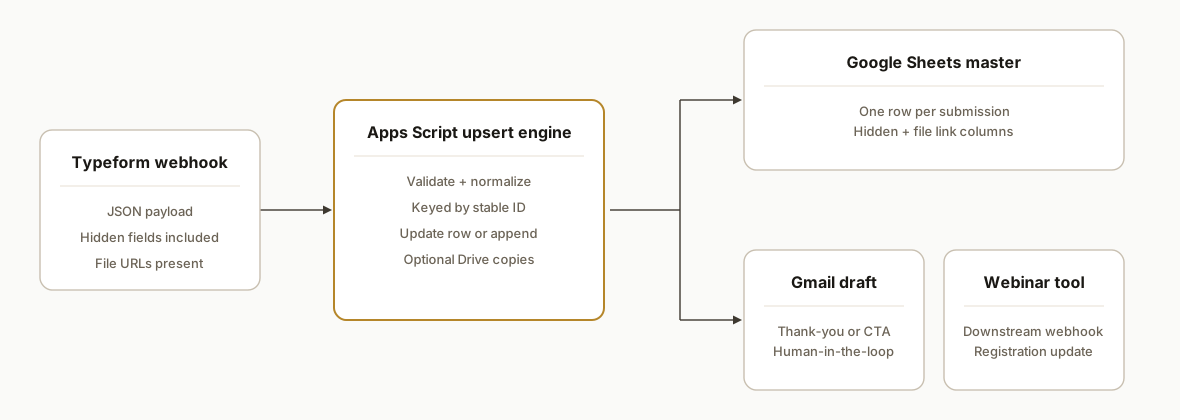
Step-by-step: how to build it
1) Publish an Apps Script web app for the webhook
Create a standalone script, add a doPost handler, and deploy as a web app. Use a shared secret to gate access.
// Code.gs
const CONFIG = { SHEET_ID: 'YOUR_SHEET_ID', TAB: 'Responses', KEY_COL_NAME: 'SubmissionKey', SECRET: 'replace-me' };

function doPost(e) {
  if (!e || !e.postData) return ContentService.createTextOutput('Bad Request').setMimeType(ContentService.MimeType.TEXT);
  const secret = e.parameter && e.parameter.secret;
  if (secret !== CONFIG.SECRET) return ContentService.createTextOutput('Unauthorized').setMimeType(ContentService.MimeType.TEXT);

  const body = JSON.parse(e.postData.contents);
  const record = normalizePayload(body); // map fields, hidden, files, and compute key
  upsertRow(record);
  afterUpsertHook(record); // optional fan-outs
  return ContentService.createTextOutput('OK').setMimeType(ContentService.MimeType.TEXT);
}
Gotcha: after editing code, you must create a new deployment version for the live URL to update. File: Manage deployments then New deployment.
2) Normalize the payload, including hidden fields and attachments
Map the incoming JSON into a flat object with predictable columns. Preserve hidden fields verbatim. Keep file URLs and, if needed, copy to Drive.
function normalizePayload(payload) {
  // Use the stable submission identifier present in the webhook payload.
  // Fallback to a hash if needed.
  const stableKey = payload && payload.event_id ? payload.event_id : Utilities.base64Encode(Utilities.computeDigest(Utilities.DigestAlgorithm.SHA_256, JSON.stringify(payload))).slice(0, 24);

  const answers = extractAnswers(payload);      // implement per your form schema
  const hidden = extractHidden(payload);        // implement per your hidden fields
  const files = extractFiles(payload);          // implement to collect any file URLs

  const driveCopies = files.map(f => tryCopyToDrive(f));

  return {
    SubmissionKey: stableKey,
    SubmittedAt: new Date().toISOString(),
    // spread normalized fields
    ...answers,
    ...hidden,
    Attachments: files.join('\n'),
    DriveCopies: driveCopies.filter(Boolean).join('\n')
  };
}

function tryCopyToDrive(fileUrl) {
  if (!fileUrl) return '';
  try {
    const resp = UrlFetchApp.fetch(fileUrl, { muteHttpExceptions: true });
    if (resp.getResponseCode() !== 200) return '';
    const blob = resp.getBlob();
    const f = DriveApp.getFolderById('YOUR_FOLDER_ID').createFile(blob).setName(`tf_${Date.now()}_${blob.getName()}`);
    return f.getUrl();
  } catch (e) { return ''; }
}
Key point: write hidden fields to named columns so you can filter and join downstream without custom formulas.
3) Upsert by key: update existing row or append a new one
Scan a header-named column for the key. If present, update in place. If not, append a new row.
function upsertRow(record) {
  const ss = SpreadsheetApp.openById(CONFIG.SHEET_ID);
  const sh = ss.getSheetByName(CONFIG.TAB);
  const headers = sh.getRange(1, 1, 1, sh.getLastColumn()).getValues()[0];
  const keyCol = headers.indexOf(CONFIG.KEY_COL_NAME) + 1;
  if (keyCol < 1) throw new Error('Primary key column not found');

  const lastRow = sh.getLastRow();
  const keys = keyCol <= sh.getLastColumn() && lastRow > 1 ? sh.getRange(2, keyCol, lastRow - 1, 1).getValues().flat() : [];
  const rowIdx = keys.findIndex(v => String(v).trim() === String(record[CONFIG.KEY_COL_NAME]).trim());

  // Ensure all columns exist in the sheet
  const needed = Object.keys(record);
  const toAdd = needed.filter(h => !headers.includes(h));
  if (toAdd.length) {
    sh.insertColumnsAfter(headers.length, toAdd.length);
    sh.getRange(1, headers.length + 1, 1, toAdd.length).setValues([toAdd]);
  }
  const freshHeaders = sh.getRange(1, 1, 1, sh.getLastColumn()).getValues()[0];
  const rowArray = freshHeaders.map(h => record[h] !== undefined ? record[h] : '');

  if (rowIdx >= 0) {
    const targetRow = rowIdx + 2; // account for header
    sh.getRange(targetRow, 1, 1, rowArray.length).setValues([rowArray]);
  } else {
    sh.appendRow(rowArray);
  }
}
Design note: this is idempotent. If the same event is retried by the sender, the upsert simply updates the same row.
4) Preserve attachments safely
We keep the original file URL and, if required, store a Drive copy. Some clients prefer Drive permanence for review workflows. Keep each URL short and one per line to stay under Google Sheets cell limits.
function extractFiles(payload) {
  // Return an array of URLs detected in file-type answers
  // Implement per your form answer schema
  return [];
}
Operational tip: very long blobs were never written directly to cells. We only store links to files, which keeps the Sheet lean and makes downstream automation faster. For more tactics on uploads, see our guide on Typeform to Google Sheets with uploads.
5) Add optional fan-outs: Gmail draft or a webinar tool
Decouple side effects from the core write. We often run a post-write hook to draft a Gmail reply or to call a webinar tool through its documented surface.
function afterUpsertHook(record) {
  // Example: create a Gmail draft for human review
  const to = record.Email || '';
  if (to) GmailApp.createDraft(to, `We received your form`, `Thanks for your submission. Ref: ${record.SubmissionKey}`);

  // Example: call your integration layer (Make, n8n, or a serverless function)
  // That layer performs the Livestorm registration using their documented API.
  const payload = { email: record.Email, first_name: record.FirstName, last_name: record.LastName, submission_key: record.SubmissionKey };
  try {
    UrlFetchApp.fetch('https://INTEGRATION_URL.example/register', {
      method: 'post',
      contentType: 'application/json',
      payload: JSON.stringify(payload),
      muteHttpExceptions: true
    });
  } catch (e) {}
}
Keep this asynchronous where possible to avoid long response times back to the webhook sender.
6) Health checks and backfill
Add a simple GET route that returns version, last-updated, and row counts. For historical data, export a CSV once and run a one-time import that computes the same key for each row so future edits still map to the same record. For a production-safe approach to initial imports plus ongoing deltas, see our continuous sync and backfill pattern.
function doGet() {
  const ss = SpreadsheetApp.openById(CONFIG.SHEET_ID);
  const sh = ss.getSheetByName(CONFIG.TAB);
  return ContentService.createTextOutput(JSON.stringify({ ok: true, rows: sh.getLastRow() - 1, tab: CONFIG.TAB }))
    .setMimeType(ContentService.MimeType.JSON);
}
How to connect Google Sheets, Typeform, and Livestorm
If your query is connect Google Sheets Livestorm Typeform, use a split-flow pattern. The same webhook event that upserts to Sheets also triggers a separate integration step that registers the contact for the right Livestorm session. Two reliable options:
- Integration layer: send a minimal JSON payload from Apps Script to your integration URL. That layer handles Livestorm registration via its documented surface. Tools you can use: Make, n8n, or a small serverless function. See our comparison on when to pick each: Make vs n8n vs Apps Script.
- Row-triggered: use an Apps Script onChange or onFormSubmit handler that watches for new rows in Sheets, then calls your integration URL with email, name, and the Livestorm event identifier.
Both keep Sheets as the source of truth and isolate webinar logic so a Livestorm change does not impact the ingestion path. The code sample in step 5 shows the call site we ship in production.
Cómo exportar Typeform a Google Sheets: 3 pasos rápidos
Para consultas como cómo exportar Typeform a Google Sheets, este es el flujo que usamos en producción:
- Crea un Web App en Apps Script con un secreto compartido. 2) Mapea un identificador estable por respuesta, más campos ocultos y archivos. 3) Haz un upsert por clave en una pestaña de Sheets.
// Resumen mínimo
function doPost(e) {
  if (!e || !e.postData) return ContentService.createTextOutput('Bad Request');
  if ((e.parameter && e.parameter.secret) !== 'tu-secreto') return ContentService.createTextOutput('Unauthorized');
  const body = JSON.parse(e.postData.contents);
  const record = { SubmissionKey: body.event_id, Email: '', ...{} };
  upsertRow(record); // misma función de arriba
  return ContentService.createTextOutput('OK');
}
Con esto evitas duplicados: las ediciones actualizan la misma fila, los campos ocultos se conservan y los archivos quedan como enlaces o copias en Drive.
Where it gets complicated
Choosing the right primary key: Use the stable submission identifier present in the webhook payload. Do not build your own from text fields. That breaks on edits and produces duplicates.
Webhook retries and ordering: Delivery can retry or arrive out of order. The upsert must be idempotent. We key by the stable identifier and always treat the latest received payload as source of truth.
Hidden fields mapping: Hidden fields are often omitted by off-the-shelf connectors. We map them explicitly to columns at ingestion so downstream joins and filters are reliable.
Attachments and cell limits: We store attachment links, not file bodies. In past deployments, very long strings hit Google Sheets cell limits. Links avoid that class of failure and keep Sheets responsive.
Apps Script quotas: Keep the webhook handler fast and side effects minimal. Google documents Apps Script quotas and execution limits in its guide. Reference: https://developers.google.com/apps-script/guides/services/quotas
Multi-tab or multi-sink variants: For teams that also need a CRM or webinar registration, write once into Sheets as the source of truth, then fan out to other systems. Decoupling keeps the upsert resilient.
What this actually changes
For teams that live in Sheets, this removed weekly cleanup. In production it handled edits without generating a second row, preserved hidden UTM fields needed for attribution, and kept attachments as stable links that do not rot. The structural win: analytics and downstream automations always reference one row per respondent. Google's documented Apps Script limits encouraged us to move heavy work out of the webhook, which improved reliability at scale (source: Google Apps Script quotas page linked above).
Frequently asked questions
How do I connect Typeform to Google Sheets without duplicates?
Use a webhook into an Apps Script web app and perform an upsert by a stable submission key. If the key exists, update that row. If not, append. This design is idempotent, so retries never create a second row.
¿Cómo exportar Typeform a Google Sheets sin duplicados y con archivos?
Conéctalo por webhook a un endpoint de Apps Script. Mapea un identificador estable para cada respuesta, escribe los campos ocultos a columnas con nombre y guarda los archivos como enlaces o copias en Drive. Así, las ediciones actualizan la misma fila.
Can the integration preserve hidden fields and UTM parameters?
Yes. Hidden fields are part of the payload. We map them explicitly to named columns at ingestion, which keeps attribution intact for reporting and CRM joins.
How do you handle file uploads from Typeform?
We store the original file URL and, if required, save a copy to Drive for permanence. The Sheet stores links only, not file bodies, which keeps the dataset small and fast.
How do I connect Google Sheets and Livestorm from Typeform?
Fan out from the same webhook: upsert to Sheets, then call your integration layer that handles Livestorm registration. Keep webinar logic outside the core upsert so the Sheets pipeline stays stable. See the section above for patterns and the call example in step 5.
What does this cost monthly?
Apps Script and Sheets are usually zero additional cost. The main cost is the initial build and any optional services you connect. Ongoing costs arise only if you add external platforms that bill per event or user.
If you want a production-ready Typeform to Google Sheets upsert that updates rows on edit and preserves hidden fields and attachments, we have shipped this pattern multiple times. See also our related post on preserving uploads in Sheets: Typeform to Google Sheets with uploads. For broader pipelines and approvals, explore our workflow automation services. When you are ready, book a 15-minute call.
Want us to build this for you?
Nine questions, about 90 seconds. You see the hours it is costing you, then pick a time. No pitch.
Get your free assessment