
Jotform to Google Sheets automation works by capturing each submission via the native Jotform Google Sheets integration, Zapier or Make, or a Jotform Webhook, then writing a structured row to a target sheet while preserving file uploads as working links or mirrored files in Drive. If you searched how to connect Jotform to Google Sheets, here is how we build it so attachments open and the sync does not break.
Jotform to Sheets automation is: a repeatable mapping from form fields to spreadsheet columns, with attachment URLs preserved and optional Drive copies created for long-term access. The same pattern works for Gravity Forms uploads to Sheets, Typeform uploads to Sheets, Elementor uploads to Sheets, and sending Jotform files to HubSpot.
The problem it solves
You likely started with a Jotform to Google Sheets click-integration. It worked until columns moved, file links stopped opening due to privacy settings, or a teammate edited the sheet and broke the sync. Attachments arrived as dead links, large sheets hit limits, and multi-file fields became messy to analyze.
| Manual process | Automated pipeline |
|---|---|
| Export CSV from Jotform Tables weekly and paste into Sheets. | Submissions stream into Sheets on submit with stable field mapping. |
| Download each uploaded file, rename it, re-upload to Drive. | Store a working Jotform file URL or auto-save a copy to Drive and write the Drive link. |
| Rebuild a report every time the form changes. | Central mapping translates field keys to clean column names. |
| Fix broken links when Jotform privacy blocks access. | Either disable the privacy gate or fetch via the API with an API key. |
A note on scale: Google Sheets supports up to 10 million cells per spreadsheet, which is a hard cap you should plan around if the form is high volume (source: Google Docs Editors Help).
What instant form intake is worth
Move the sliders to your own numbers. The defaults are only an example business, not client data.
Revenue from submissions you stop losing each year
$90,000
200 a month × 12 × 25% × 10% × $1500
- Extra customers a year
- 60
- 200 × 12 × 25% × 10%
- Staff cost of handling it by hand each year
- $5,600
- 200 × 4 min × $35/hr × 12
- Hours handed to the system each month
- 13 hrs
- 200 × 4 min ÷ 60
How the automation works
We use the simplest path that fits your constraints. Three entry points exist and can coexist:
- Native Jotform to Google Sheets integration: fastest for basic needs. Attachments appear as URLs. Renaming or reordering columns can break the sync.
- Zapier or Make.com: official Jotform triggers add rows to a specific sheet with field mapping. Great when you want no-code routing and light transforms.
- Webhook receiver: Jotform Webhooks post the full submission to your endpoint. We map fields, write to Sheets, and optionally save attachments to Drive for durable links.
The production pattern we ship most often uses Webhooks for control and traceability, while leaving the native integration enabled as a temporary safety net during cutover.
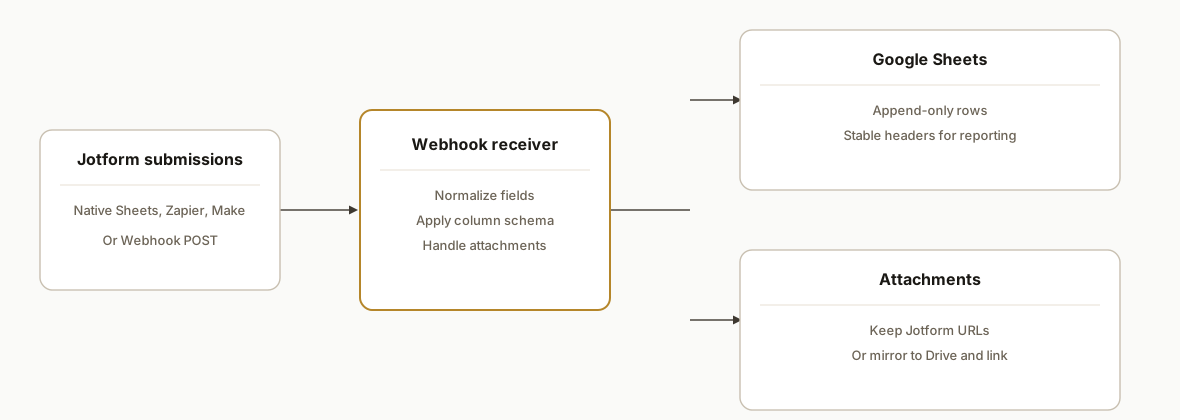
- Jotform submission: the form posts to a Webhook URL you control. You can also keep the native Google Sheets integration for a fallback during cutover.
- Webhook receiver (accent): normalizes fields, handles attachment URLs, applies your column schema, and logs errors.
- Google Sheets: gets an append-only row with stable headers that match your reporting. We avoid editing the integrated sheet structure.
- Attachment handling: either store the Jotform link as-is or fetch and mirror files to Drive, then write Drive URLs into the row.
Jotform Google Sheets integration: quick start and limits
- Set up: Jotform: Settings: Integrations: Google Sheets. Map fields to a new sheet. Do not rename or reorder columns after enabling.
- Links that open: if you keep Jotform privacy on, raw URLs in the sheet may not open. Use a webhook receiver to fetch files with an API key and save a Drive link alongside.
- Stability: treat headers as immutable. For schema changes, write to a new tab and cut over in one step. Store SubmissionID for safe row lookups and updates. See our update pattern: /blog/jotform-google-sheets-edit-sync-attachments.
Troubleshoot: Jotform to Google Sheets not working
When sync stalls or links do not open, work this checklist top to bottom:
- Column changes: confirm no one renamed, moved, or deleted headers on the integrated tab. If changed, create a new sheet via the integration and migrate data.
- Sheet protections: protect header rows. Remove hidden filters that block appends. Check for frozen blank rows at the top.
- Limits: check the spreadsheet size against Google's 10 million cell cap. If close, archive then rotate to a fresh tab.
- Auth prompts on links: if attachments prompt login, either turn off Require login to view uploaded files or mirror to Drive in your receiver.
- Duplicate rows on edits: store SubmissionID and upsert on that key to prevent duplicates. See our no-duplicate patterns: /blog/typeform-to-sheets-update-no-duplicates and /blog/gravity-forms-to-sheets-avoid-duplicates.
- Backfill gaps: export from Jotform Tables and re-ingest, or run a controlled backfill job so you do not double-insert. Reference: /blog/typeform-to-sheets-backfill-continuous-sync.
If the native integration keeps failing after a sheet edit, move to a webhook-driven receiver so you own schema and retries.
How to connect Jotform to Google Sheets now
Pick the path that matches your risk and flexibility needs. Here is the fast-start checklist.
-
Native integration:
- In Jotform: Settings: Integrations: Google Sheets.
- Map fields. Create a fresh sheet. Do not rename or reorder columns after enabling.
- If attachments must open for non-Jotform users, turn off Require login to view uploaded files or pair with the Drive mirror below.
-
Zapier:
- Trigger: Jotform New Submission. Action: Google Sheets Create Spreadsheet Row.
- Map a Submission ID column for future updates. Join multi-file fields with newline.
- Optional: add a Webhooks by Zapier step to fetch each file and write a Drive URL.
-
Make.com:
- Jotform Watch Submissions module. Google Sheets Add a Row module.
- Use a named header schema in Sheets. Normalize arrays with array.join("\n").
- Optional: HTTP module to fetch files, then Google Drive Upload a File and write the Drive link. See our comparison of tool choices: /blog/make-vs-n8n-vs-gas and our primer on options: /blog/tools-to-connect-your-apps.
-
Webhook to Apps Script (most control):
- Deploy an Apps Script Web App receiver and paste its URL in Jotform Webhooks.
- Map fields to stable headers. Write append-only rows. Mirror files to Drive if privacy is on.
Checklist to keep the native sync from breaking:
- Protect header rows. Avoid renaming or reordering columns on integrated tabs.
- Do schema changes in a new tab and cut over atomically.
- Keep a SubmissionID in column A so other tooling can update the correct row (see row update pattern).
Jotform Google Drive integration: when and how to mirror files
Use Drive mirroring when either privacy is required or long-term access to files matters.
- When to mirror: privacy is on, reviewers are outside your Jotform org, or retention exceeds Jotform storage plans.
- How to mirror: fetch the file with an API key, save to a named Drive folder, then write that Drive URL back to the sheet. We cover variants here: /blog/jotform-to-google-drive-with-attachments.
- File naming in production: prepend SubmissionID and a short field key so duplicates do not collide.
Connect Google Sheets to webhooks: IHCM or storage events
If your HR or storage system can send a webhook on create or update, you can land those events in Sheets using the same receiver pattern.
- Receiver: accept JSON, normalize keys, and map to headers.
- Vendor payloads: if a vendor does not expose a webhook, route through Zapier or Make using its app module instead.
- Attachments: for storage events, store the public or signed URL in a dedicated column and a Drive mirror if you need redundancy.
How to connect Google Sheets to an IHCM webhook
- Create or reuse the Apps Script Web App receiver below.
- In IHCM, set the webhook URL for employee create or document upload events.
- Map keys to a shared schema that includes Timestamp, Source, SubmissionID, Name, Email, and AttachmentURLs.
- Verify with a test employee and confirm the row is appended to the Submissions tab.
How to connect Google Sheets to a storage webhook
- Point the storage service webhook at the same Web App.
- Map filename and fileUrl into Notes and AttachmentURLs, then optionally mirror to Drive.
- For signed URLs with expiries, always store the mirrored Drive link for durable access.
Example: flexible Apps Script receiver that handles multiple vendors by a vendor query parameter.
// Code.gs (variant used when we aggregate multiple webhook sources)
const SHEET = SpreadsheetApp.getActive().getSheetByName('Submissions');
const MAPS = {
  jotform: { name: 'Name', email: 'Email', attachments: 'AttachmentURLs' },
  ihcm: { workerName: 'Name', workerEmail: 'Email', docUrl: 'AttachmentURLs' },
  storage: { filename: 'Notes', fileUrl: 'AttachmentURLs' }
};

function doPost(e) {
  const vendor = (e.parameter.vendor || 'jotform').toLowerCase();
  const body = safeParse(e.postData && e.postData.contents);
  const headers = ['Timestamp','Source','SubmissionID','Name','Email','Company','Plan','Notes','AttachmentURLs','DriveLinks'];
  const row = headers.map(h => valueFor(h, vendor, body));
  SHEET.appendRow(row);
  return ContentService.createTextOutput('OK');
}

function valueFor(header, vendor, body) {
  if (header === 'Timestamp') return new Date();
  if (header === 'Source') return vendor;
  if (header === 'SubmissionID') return body.id || body.submission_id || body.uuid || '';
  const map = MAPS[vendor] || {};
  for (const [src, dest] of Object.entries(map)) {
    if (dest === header) {
      const v = body[src];
      if (Array.isArray(v)) return v.join('\n');
      if (v && typeof v === 'object') return JSON.stringify(v);
      return v || '';
    }
  }
  return '';
}

function safeParse(s) {
  try { return JSON.parse(s || '{}'); } catch (_) { return {}; }
}
Livestorm or Typeform into one tracker: if your webinar or form tool offers a Zapier module or webhook, point it at the same receiver and unify columns by map. For Typeform with file uploads, see our build notes: /blog/typeform-to-google-sheets-with-uploads. We have also shipped upload-preserving sinks for WordPress form plugins such as /blog/gravity-forms-to-google-sheets-with-uploads and /blog/contact-form-7-to-google-sheets-uploads.
Google Sheets Livestorm and Typeform integrations: one pipeline
You can track Livestorm registrations and Typeform submissions in the same Google Sheet without duplicate logic.
- Livestorm: use Zapier New Registration or a webhook to capture attendee and event context. Map into your unified headers, then append to the Submissions tab. If you run post-event surveys in Typeform, keep the same SubmissionID strategy per platform and use an EventID column to join.
- Typeform: preserve any upload URLs and mirror to Drive if privacy is on. For reliability patterns, see our posts on continuous backfill and update without duplicates.
- One pipeline: the Apps Script receiver above routes by vendor query parameter so you can land Livestorm, Typeform, and Jotform in one place.
Step-by-step: how to build it
Step 1: Prepare a stable Google Sheet schema
Decide column headers up front and keep them stable. Avoid renaming or reordering columns on any sheet that is bound to a live integration.
Timestamp,SubmissionID,Name,Email,Company,Plan,Notes,AttachmentURLs,DriveLinksKey gotcha: Jotform confirms that editing an integrated Google Sheet can break the sync. Treat schema changes as a versioned migration, not an ad hoc edit.
Step 2: Choose your entry point and map field keys
Jotform exposes field keys in submission payloads. Build a mapping from Jotform keys to your Sheet headers.
// Example field map used by our receiver
const FIELD_MAP = {
  name: 'Name',
  email: 'Email',
  company: 'Company',
  plan: 'Plan',
  notes: 'Notes',
  attachments: 'AttachmentURLs'
};
If you start on Zapier or Make, their Jotform modules expose fields for drag-and-drop mapping to Google Sheets columns. For a webhook, you apply FIELD_MAP in code.
Step 3: Stand up a Google Apps Script Web App receiver
Apps Script is a simple, zero-infra way to accept Jotform Webhooks and write to Sheets.
// Code.gs
const SHEET_NAME = 'Submissions';
const API_KEY = PropertiesService.getScriptProperties().getProperty('JOTFORM_API_KEY');

function doPost(e) {
  const body = JSON.parse(e.postData.contents);
  const sheet = SpreadsheetApp.getActive().getSheetByName(SHEET_NAME);

  const row = buildRow(body);
  sheet.appendRow(row.values);

  // try mirroring attachments to Drive for durable links
  const driveLinks = mirrorAttachments(body, API_KEY);
  if (driveLinks.length) {
    const lastRow = sheet.getLastRow();
    const driveCol = row.headers.indexOf('DriveLinks') + 1;
    if (driveCol > 0) sheet.getRange(lastRow, driveCol).setValue(driveLinks.join('\n'));
  }

  return ContentService.createTextOutput('OK');
}

function buildRow(payload) {
  const headers = ['Timestamp','SubmissionID','Name','Email','Company','Plan','Notes','AttachmentURLs','DriveLinks'];
  const values = [
    new Date(),
    payload?.submission_id || payload?.id || '',
    payload?.name || '',
    payload?.email || '',
    payload?.company || '',
    payload?.plan || '',
    payload?.notes || '',
    Array.isArray(payload?.attachments) ? payload.attachments.join('\n') : (payload?.attachments || '') ,
    ''
  ];
  return { headers, values };
}

function mirrorAttachments(payload, apiKey) {
  const urls = Array.isArray(payload?.attachments) ? payload.attachments : (payload?.attachments ? [payload.attachments] : []);
  const dest = DriveApp.getFolderById(PropertiesService.getScriptProperties().getProperty('DEST_FOLDER_ID'));
  const links = [];
  urls.forEach(u => {
    try {
      // Some accounts require login to view uploaded files; Jotform documents using an API key
      // Include the API key header. If privacy blocks access, this may still return 403 until you change the Jotform setting.
      const resp = UrlFetchApp.fetch(u, { headers: { 'APIKEY': apiKey }, muteHttpExceptions: true });
      if (resp.getResponseCode() === 200) {
        const blob = resp.getBlob();
        const file = dest.createFile(blob.setName(blob.getName() || `jotform-${Date.now()}`));
        links.push(file.getUrl());
      } else {
        // fallback: keep the original link
        links.push(u);
      }
    } catch (err) {
      links.push(u);
    }
  });
  return links;
}
Deploy as a Web App, copy the URL, and set two Script Properties: JOTFORM_API_KEY and DEST_FOLDER_ID.
Step 4: Point the Jotform Webhook to your endpoint
In Jotform, add a Webhook integration and paste the Web App URL. Submit a test to see the payload arrive. Jotform's Webhooks send full submission data, which you can log for troubleshooting.
Settings: Integrations: Webhooks: https://script.google.com/macros/s/.../execIf you prefer Zapier or Make, use their official Jotform triggers and Google Sheets modules to map the same columns. They handle the POST for you.
Step 5: Make attachment links open reliably
By default, file uploads in Sheets appear as URLs. They may fail to open if Jotform privacy is set to Require login to view uploaded files. Fix this one of two ways: disable that setting, or fetch files via the API in your receiver and mirror them to Drive.
Jotform: Account Settings: Privacy: Require login to view uploaded files: Off (for link access)If you keep privacy On, keep the API-key download path in your receiver and store Drive links next to the original URL.
Step 6: Guard your sheet and plan for growth
Protect header rows and do not reorder columns on integrated sheets. When volume grows, archive to a data warehouse periodically and rotate to a new tab when approaching Google's limits.
-- Example archival pattern (BigQuery target)
CREATE TABLE IF NOT EXISTS dataset.jotform_submissions_2026 AS
SELECT * FROM dataset.jotform_submissions_live;
TRUNCATE TABLE dataset.jotform_submissions_live;
Google Sheets' 10 million cell limit is a practical ceiling for always-on form sinks. Rotate before you hit it to avoid surprise failures.
Update the row when a Jotform submission is edited
If your flow posts edits to the same endpoint, upsert on SubmissionID: update the existing row when found, append when not.
// Upsert-by-ID for Apps Script receiver
function upsertRowById(sheet, headers, payload) {
  const id = payload?.submission_id || payload?.id || '';
  const values = buildRow(payload).values;
  if (!id) return sheet.appendRow(values);

  const idCol = headers.indexOf('SubmissionID') + 1;
  const last = sheet.getLastRow();
  if (idCol <= 0 || last < 2) return sheet.appendRow(values);

  const ids = sheet.getRange(2, idCol, last - 1, 1).getValues().map(r => String(r[0] || ''));
  const idx = ids.findIndex(v => v === String(id));
  if (idx === -1) return sheet.appendRow(values);

  const rowNumber = idx + 2;
  sheet.getRange(rowNumber, 1, 1, headers.length).setValues([values]);
}
This prevents duplicates when a submission is edited or resubmitted. For a deeper no-duplicate strategy across tools, see /blog/typeform-to-sheets-update-no-duplicates.
Jotform EU or HIPAA: pick the right API base and privacy path
If you fetch files or call the API, align the base domain with your account region and plan.
- API bases: api.jotform.com is default. Some accounts use eu-api.jotform.com or hipaa-api.jotform.com.
- Auth: pass the API key as apiKey query parameter or as an APIKEY header.
- Privacy: if HIPAA or strict privacy is required, do not expose raw file URLs. Mirror to Drive and share per least privilege.
// Choose API base by property
const API_BASE = PropertiesService.getScriptProperties().getProperty('JOTFORM_API_BASE') || 'https://api.jotform.com';
const API_KEY = PropertiesService.getScriptProperties().getProperty('JOTFORM_API_KEY');
// Example request (path redacted):
const resp = UrlFetchApp.fetch(`${API_BASE}/...`, { headers: { 'APIKEY': API_KEY } });
If auditors need durable artifacts like invoices or receipts, consider structured extraction downstream. Example patterns: /blog/extract-pdf-receipts-to-spreadsheets.
Where it gets complicated
- Privacy-locked file URLs: When Require login to view uploaded files is enabled, simple clicks on links in Sheets fail. Either disable that setting or fetch via the API with an API key and mirror to Drive.
- Column edits break native sync: Jotform's Google Sheets integration can stop syncing if you rename or reorder columns. Treat schema as code and version changes.
- Sheet size ceilings: Large Sheets hit Google's cell and column limits. Plan archival and rotation so you do not stall intake during a surge.
- Multi-file fields: Some forms let a user upload multiple files. Normalize to a newline-joined list and store Drive links side-by-side for analytics and access.
- Regional API domains: Jotform uses api.jotform.com, with eu-api and hipaa-api variants. Pick the right base when you add any API calls.
What this actually changes
In production we stopped CSV exports, eliminated dead attachment links, and made reporting consistent by controlling the schema. Operators moved from weekly paste-jobs to live dashboards that stayed accurate even as forms evolved. The attachment mirroring removed the need to click into Jotform to fetch files. Plan capacity around Google's documented 10 million cell limit per spreadsheet so growth does not surprise you (source: Google Docs Editors Help).
Frequently asked questions
Does Jotform have an official API?
Yes. Jotform's API base is https://api.jotform.com, with regional variants for EU and HIPAA. Authentication uses an API key passed either as a query parameter apiKey or as an APIKEY HTTP header. You can pair the API with Webhooks to build a custom Sheets sink.
Will attachments appear in Google Sheets?
They appear as URLs. Those URLs may require login depending on your Jotform privacy setting. Either disable Require login to view uploaded files or have your receiver fetch files via the API and mirror them to Drive, then write the Drive URLs into the sheet.
Can I use Zapier or Make instead of a webhook?
Yes. Both have official Jotform triggers and Google Sheets modules that add rows with mapped fields. They are quick to set up and work well for light transforms. We show upload-preserving setups for Gravity Forms to Sheets, Typeform to Sheets, Elementor to Sheets, and Contact Form 7 to Sheets.
What breaks the Jotform to Sheets integration?
Editing the integrated sheet's structure is the most common cause: renaming or reordering columns can break the native sync. Also watch for hitting Sheets' size limits. Keep schema stable and rotate or archive as volume grows.
Can this update rows when someone edits a submission?
It can, but you need a reliable row key. With a webhook approach you capture the submission ID and look up the row to update. With Zapier or Make you can route submission edits and map to updates if you store the submission ID in the sheet. For details on both triggers and privacy-safe links, see updating rows on edit.
If you want a Jotform to Google Sheets pipeline that keeps attachments opening and your columns stable, here is the exact build we use. See our related post on using Sheets as a production sink for orders in Shopify: /blog/automate-shopify-local-orders-google-sheets. Explore other form-to-Sheets builds like /blog/drip-to-google-sheets-integration-automation. Or review our broader workflow automation services. Ready to scope yours: /book.
Want us to build this for you?
Nine questions, about 90 seconds. You see the revenue it is costing you, then pick a time. No pitch.
See your options