
We built a Jotform to HubSpot handoff that preserves every uploaded file: the integration uploads files to HubSpot via the Files API, creates a Note with hs_attachment_ids, and associates that Note to the correct contact and deal. It runs in production today for a services firm that needs contracts, W9s, and photos attached to the CRM without human download and reupload.
Jotform to HubSpot with attachments automation is a webhook-driven bridge that turns form submissions into enriched CRM records with binary files stored in HubSpot Files and attached to contacts and deals.
The problem it solves
The short answer: Jotform's file links do not reliably land as real attachments in HubSpot. HubSpot properties cannot store binary files, so dropping a URL into a form or contact property will not upload anything to HubSpot's File Manager. If Jotform privacy requires login, those URLs break entirely. The manual workaround is downloading files, uploading to HubSpot, writing a Note, and associating it to a record. We removed that loop.
| Task | Manual handling | Automated handling |
|---|---|---|
| Capture submission | Export CSV from Jotform Tables or read emails | Jotform webhook posts JSON to our endpoint |
| Files from upload fields | Click each file link, download, rename | Fetch files from payload, stream-upload to HubSpot Files |
| Attach to CRM | Create a Note, upload file in HubSpot UI, copy-paste details | Create a Note with hs_attachment_ids and API-associate to contact and deal |
| Field mapping | Copy values into HubSpot properties | Map fields once and upsert contact with a stable key like email |
| Privacy-locked links | Hit a login wall and re-request files | Use authenticated fetch or disable the Jotform privacy toggle when allowed |
How the automation works
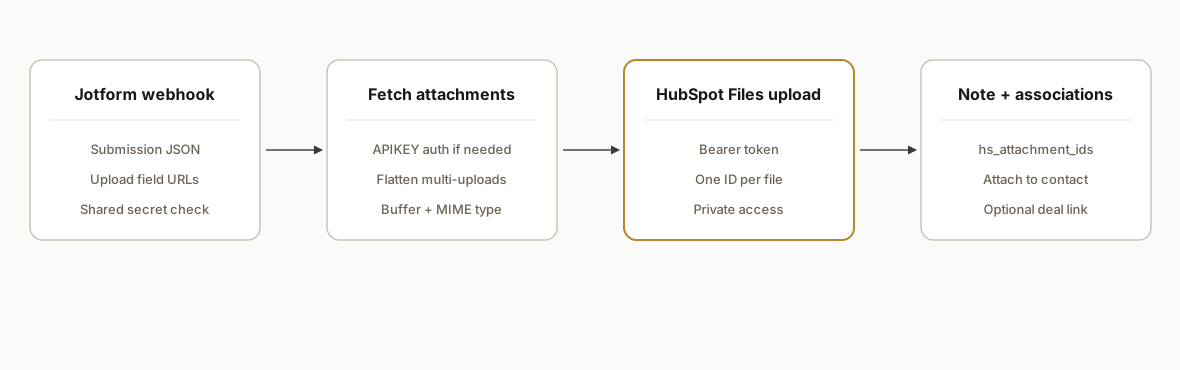
A Jotform webhook posts each submission to our server with field values and file URLs. We normalize the payload, ensure file URLs are retrievable under your Jotform privacy settings, then upload every file to HubSpot Files using a HubSpot access token. We create a CRM Note that references those file IDs in hs_attachment_ids and associate it to the right contact and, if present, the right deal.
- Jotform Webhook: Jotform posts JSON to our HTTPS endpoint on each submission. Auth is verified server-side with a shared secret and basic IP checks.
- File retrieval: If Jotform's privacy setting requires login to view files, the integration fetches files with authenticated requests. If the account allows, we switch off the login requirement to simplify access.
- HubSpot Files upload: We upload binaries to HubSpot Files using a Bearer token from OAuth 2.0 or a Private App access token. Each successful upload returns a file identifier.
- Note with hs_attachment_ids: We create a CRM Note and include the uploaded file IDs so the files display as real attachments in HubSpot.
- Associations: We associate the Note to the contact found or created by email, and optionally to a deal if your form provided a deal key or we can resolve one from HubSpot.
Step-by-step: how to build it
1) Create a Jotform webhook and plan your fields
Point the form to your HTTPS endpoint. Include an email field to upsert the right contact and include any stable deal reference if you want to attach files to a deal.
# Jotform: Settings -> Integrations -> Webhooks -> Add Webhook
# URL example
https://your-domain.example.com/webhooks/jotform
Key gotcha: If your Jotform account enables Privacy: Require Log-in to View Uploaded Files, downstream tools cannot fetch public file URLs. For non-HIPAA forms, turn this off in Jotform settings. For HIPAA, plan to fetch with authenticated requests.
2) Receive and validate the Jotform payload
We use Node.js and Express. Validate a shared secret query param configured on the webhook to block unsolicited posts.
import express from "express";
const app = express();
app.use(express.json({ limit: "25mb" }));

app.post("/webhooks/jotform", async (req, res) => {
  if (req.query.token !== process.env.JOTFORM_SHARED_TOKEN) return res.sendStatus(401);
  const submission = req.body;
  // Expect: submission.answers with fields, including any upload field URLs
  // Normalize to { email, fields: {...}, files: [ { url, name } ] }
  const norm = normalizeSubmission(submission);
  queueForProcessing(norm); // hand to a worker
  res.sendStatus(202);
});
Gotcha: Jotform can send arrays for multi-upload fields. Do not assume a single URL. Always flatten.
3) Fetch files from Jotform safely
If privacy is enabled, fetch with an authenticated header. Jotform supports API key auth via the APIKEY header or apiKey query param.
import axios from "axios";

async function fetchFileBuffer(fileUrl) {
  const hdrs = process.env.JOTFORM_API_KEY ? { APIKEY: process.env.JOTFORM_API_KEY } : {};
  const resp = await axios.get(fileUrl, { headers: hdrs, responseType: "arraybuffer" });
  return { buffer: Buffer.from(resp.data), contentType: resp.headers["content-type"] || "application/octet-stream" };
}
Gotcha: For HIPAA Jotform accounts you cannot disable login on file URLs. Use authenticated fetch, store only what policy allows, and avoid caching PHI.
4) Upsert the HubSpot contact by email
Authenticate to HubSpot with OAuth 2.0 or a Private App access token. Look up by email first, then create or update.
const HS = axios.create({ baseURL: "https://api.hubapi.com", headers: { Authorization: `Bearer ${process.env.HUBSPOT_TOKEN}` }});

async function upsertContactByEmail(email, properties) {
  // 1) search by email
  const found = await HS.post("/crm/v3/objects/contacts/search", { filterGroups: [{ filters: [{ propertyName: "email", operator: "EQ", value: email }]}], properties: ["email"] });
  if (found.data.total > 0) return found.data.results[0];
  // 2) create
  const created = await HS.post("/crm/v3/objects/contacts", { properties: { email, ...properties }});
  return created.data;
}
Gotcha: Never create a duplicate when email is present. Search first.
5) Upload each file to HubSpot Files
Upload binaries to HubSpot Files. The Files API accepts a file name, file content, and metadata. Capture each returned file ID.
async function uploadToHubSpotFiles(name, contentType, buffer) {
  const form = new FormData();
  form.append("file", buffer, { filename: name, contentType });
  form.append("options", JSON.stringify({ access: "PRIVATE" }));
  const resp = await HS.post("/files-api-endpoint", form, { headers: { ...form.getHeaders() }}); // use the documented Files API path
  return resp.data; // capture the file ID for hs_attachment_ids
}
Gotcha: Do not store public file URLs. Upload to HubSpot Files and keep access controls consistent with your account policy.
6) Create a Note with hs_attachment_ids and associate it
Create a CRM Note that references the uploaded file IDs, then associate it to the contact and optionally a deal.
async function createNoteWithAttachments(fileIds, bodyText) {
  const note = await HS.post("/crm/v3/objects/notes", { properties: { hs_note_body: bodyText, hs_attachment_ids: fileIds.join(",") }});
  return note.data;
}

async function associateNote(noteId, toObjectType, toObjectId) {
  await HS.put(`/crm/v4/objects/notes/${noteId}/associations/${toObjectType}/${toObjectId}`, { /* association body per docs */ });
}
Gotcha: HubSpot properties cannot hold binary files. The supported path is Files API upload, then a Note with hs_attachment_ids, then associations to contact and deal.
Where it gets complicated
- Jotform privacy on uploads: When Require Log-in to View Uploaded Files is enabled, anonymous downloads fail. For non-HIPAA forms you can disable that. HIPAA accounts must fetch files with authenticated requests and handle PHI appropriately.
- HubSpot cannot store binaries in properties: Sending a file URL to a contact property will not upload the file to HubSpot. Use the Files API, then a Note with hs_attachment_ids, then associate it to records.
- Multiple attachments per submission: Connectors may flatten or skip arrays depending on configuration. We iterate all upload fields, de-duplicate by checksum and name, and attach every file ID to one Note per submission to keep context together.
- Contact and deal resolution: Always search by email before creating a contact. For deals, rely on a stable external ID or a deterministic search to avoid attaching to the wrong deal.
- HubSpot token choice: OAuth 2.0 or Private App access tokens both work. Keep tokens in your secret store and rotate them. Treat Files API scope as least-privilege.
- Regional and compliance variants: Jotform has EU and HIPAA environments. Validate base domains and policies before production. For HIPAA, review storage, retention, and redaction rules before writing any PHI to logs.
What this actually changes
In production this eliminated the download and reupload treadmill. Submissions now arrive in HubSpot as enriched contacts with a Note that contains the exact files the form collected. Sales sees one clean activity with attachments instead of a trail of emails and cloud links. It also solved the link-rot problem when vendors change file link access over time by storing files directly in HubSpot.
One external data point to frame the value: firms that tried to contact potential customers within an hour of receiving a query were nearly seven times as likely to qualify the lead as those that waited longer (Harvard Business Review: https://hbr.org/2011/03/the-short-life-of-online-sales-leads). Removing manual attachment handling is how you keep response times tight while still capturing documents.
Frequently asked questions
Does Jotform have an API for this?
Yes. Jotform exposes a public API at https://api.jotform.com and supports API keys passed as a query parameter or APIKEY header. Jotform also supports outbound webhooks so your server can receive each submission in real time.
How do you attach files to HubSpot records?
You upload each file to HubSpot using the Files API, then create a CRM Note that lists the uploaded file IDs in hs_attachment_ids. Finally you associate that Note to the contact and, if needed, to a deal so the attachments show on both timelines.
Will Zapier or Make work instead of code?
They work for simple flows and can be a fast start. For multi-upload fields, login-protected Jotform files, or attaching to both contacts and deals in one pass, we use a small service with the Files API and Note associations so every file is preserved.
What if my Jotform account is HIPAA?
HIPAA accounts cannot disable the login requirement on uploaded files. Fetch files with authenticated requests, avoid logging PHI, and store only what your policy allows. The rest of the flow remains the same: upload to HubSpot Files, create a Note, and associate.
Do I need OAuth in HubSpot or can I use a Private App token?
Both patterns use Bearer tokens. OAuth 2.0 and Private App access tokens are supported by HubSpot. We pick based on your governance and rotation policy.
Can you attach to deals as well as contacts?
Yes. After you create the Note with hs_attachment_ids, associate it to the deal using HubSpot's associations endpoint. We resolve the target deal using a stable external reference or a deterministic search to avoid mis-association.
If you want this exact build running on your stack, we have shipped it. See our CRM automation services at /services#crm-automation, and for a related file-handling pattern see /blog/jotform-to-google-drive-with-attachments. When you are ready, book a working session at /book and we will scope your fields and objects on the call.
Want us to build this for you?
Nine questions, about 90 seconds. You see the hours it is costing you, then pick a time. No pitch.
Get your free assessment