
JotForm to Google Drive automation is a webhook-driven flow that creates one Google Drive folder per submission, downloads the uploaded files into that folder, and writes a Google Sheets log with working links you can sort and share. We shipped this for a multi-location operator that needed clean, per-submission folders and a durable audit log.
If you collect files with JotForm and your team ends up digging through emails or broken links, this guide shows the exact build: one folder per submission in Drive, stable URLs in a Sheets log, Shared Drives support, and safeguards around the single JotForm privacy toggle that breaks downloads. If you also need Google Sheets as a storage sink via webhooks, we include a minimal receiver pattern below.
The problem it solves
Teams typically download JotForm attachments from email notifications, rename them by hand, and then paste links into a tracker. Folders drift, links break when permissions change, and Shared Drives are left out if you rely only on JotForm's native Drive integration.
| Manual process | Automated flow |
|---|---|
| Open notification email, download each attachment, save to a guessed folder name | Webhook fires on submit, creates a folder named from submission data, saves all files inside |
| Paste links into a spreadsheet, hope they keep working | Log row added to Google Sheets with Drive folder and file links that continue to work |
| Repeat this for every submission, error prone | Runs in seconds, identical every time |
| Shared Drives require more manual steps | Shared Drives are first-class when the folder base is set in Script |
Definition: JotForm to Google Drive automation is a webhook or native integration that turns form submissions into organized Drive folders with attachments and a searchable log.
How the automation works
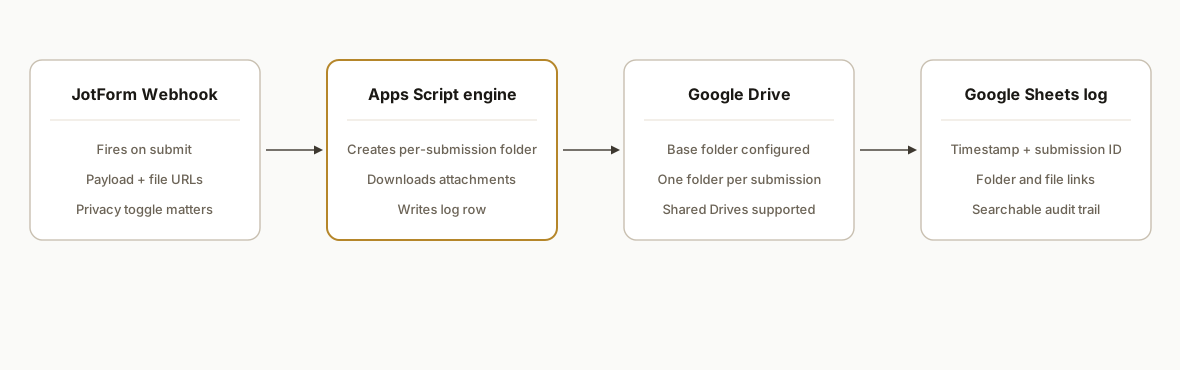
We run JotForm's native Webhooks into a Google Apps Script Web App. The Script creates a child folder under a specific base folder in Google Drive, fetches each uploaded file, writes them into that new folder, and appends a row in a Google Sheet with the submission ID, form label, and stable Drive links. This sidesteps the native pathing limits and the Shared Drive gap.
- JotForm Webhook: Fires on every submission with the submission payload. JotForm exposes official webhooks and an API for programmatic access. Authentication for API calls uses an API key via header or query parameter.
- Apps Script engine: Receives the webhook, computes a folder label from key submission fields, and writes to Google Drive and Google Sheets. The engine runs serverlessly in your Google Workspace.
- Google Drive target: A configured base folder acts as the root. The Script creates one subfolder per submission and puts attachments there. Using Script means you can write to Shared Drives even though the standard JotForm Drive integration does not.
- Google Sheets log: A tab named Submissions captures timestamp, submission ID, Drive folder link, and optional file links for quick search and audits.
- Privacy control: JotForm's setting Require Login to View Uploaded Files, if enabled, makes attachment URLs require authentication. Disable it to keep links working in downstream automations, or fetch via an authenticated bridge.
Step-by-step: how to build it
1) Create a JotForm API key and set the webhook
Answer first: generate a JotForm API key, then add a Webhook integration that points to your Apps Script Web App URL.
- JotForm API: https://api.jotform.com uses an API key via header or query parameter. EU and HIPAA tenants use different base URLs.
- In your form: Settings, Integrations, Webhooks, add your Web App URL.
- In JotForm settings, review File Upload privacy. If Require Login to View Uploaded Files is on, raw file URLs in payloads will not be publicly fetchable by automations.
2) Scaffold the Apps Script Web App
Answer first: deploy a minimal doPost receiver that creates a folder, downloads attachments, and logs to Sheets.
// Apps Script: Code.gs
function doPost(e) {
  const props = PropertiesService.getScriptProperties();
  const BASE_FOLDER_ID = props.getProperty('BASE_FOLDER_ID'); // parent folder in Drive or Shared Drive
  const SHEET_ID = props.getProperty('SHEET_ID');

  const body = JSON.parse(e.postData.contents || '{}');
  const submissionId = body.submission_id || body.submissionID || Utilities.getUuid();

  // Derive a readable label from the payload when possible
  const nameKey = Object.keys(body).find(k => /name/i.test(k) && typeof body[k] === 'string');
  const label = nameKey ? body[nameKey].toString().trim() : submissionId;
  const folderName = `${(body.form_title || 'JotForm').toString().trim()} - ${label}`;

  const base = DriveApp.getFolderById(BASE_FOLDER_ID);
  const sub = base.createFolder(folderName);

  // Collect any URL-looking values as candidate attachments
  const values = Object.values(body);
  const urls = [];
  values.forEach(v => {
    if (typeof v === 'string' && /^https?:\/\//i.test(v)) urls.push(v);
    if (Array.isArray(v)) v.forEach(x => { if (typeof x === 'string' && /^https?:\/\//i.test(x)) urls.push(x); });
  });

  const saved = [];
  urls.forEach(u => {
    try {
      const resp = UrlFetchApp.fetch(u);
      const name = (function pickName() {
        const headers = resp.getHeaders();
        const cd = headers['Content-Disposition'] || headers['content-disposition'] || '';
        const m = /filename\*=UTF-8''([^;]+)|filename="?([^";]+)"?/i.exec(cd);
        if (m) return decodeURIComponent(m[1] || m[2]);
        return u.split('/').pop().split('?')[0] || `file-${Date.now()}`;
      })();
      const file = sub.createFile(resp.getBlob().setName(name));
      saved.push({ name, id: file.getId() });
    } catch (err) {
      console.warn('Fetch failed for', u, err);
    }
  });

  const ss = SpreadsheetApp.openById(SHEET_ID);
  const sh = ss.getSheetByName('Submissions') || ss.insertSheet('Submissions');
  if (sh.getLastRow() === 0) sh.appendRow(['ts','submission_id','folder_url','files']);
  const folderUrl = `https://drive.google.com/drive/folders/${sub.getId()}`;
  sh.appendRow([new Date(), submissionId, folderUrl, saved.map(s => `https://drive.google.com/open?id=${s.id}`).join('\n')]);

  return ContentService
    .createTextOutput(JSON.stringify({ ok: true, folderId: sub.getId(), files: saved.length }))
    .setMimeType(ContentService.MimeType.JSON);
}
Deploy as Web App. Set Who has access to Anyone with the link if JotForm cannot sign requests to your domain. Store BASE_FOLDER_ID and SHEET_ID in Script Properties.
Key gotcha: if JotForm's attachment privacy is enabled, UrlFetchApp on public URLs will fail. Either disable that setting or fetch via an authenticated bridge.
3) Point the base to a Shared Drive folder
Answer first: pick your Shared Drive folder once and never touch per-form pathing again.
- In Drive, copy the ID of the Shared Drive folder that should hold all submissions and set it as BASE_FOLDER_ID.
- The Script always creates a child folder under this base. You avoid the native integration's pathing and Shared Drive limits.
JotForm's standard Drive integration can create submission subfolders but does not support Shared Drives in the usual integration path. Using Apps Script bypasses that limit by writing directly to Drive.
4) Name folders from real fields
Answer first: compute a human label reliably so your folders are readable.
Add a small helper to find a preferred field, for example an email or a reference number present in your payload. If none is present, fall back to the submission ID.
function pickLabel(body) {
  const candidates = [
    k => /reference|ticket|case|order/i.test(k),
    k => /email/i.test(k),
    k => /name/i.test(k),
  ];
  for (const test of candidates) {
    const key = Object.keys(body).find(k => test(k) && typeof body[k] === 'string');
    if (key) return body[key].toString().trim();
  }
  return body.submission_id || body.submissionID || Utilities.getUuid();
}
Use pickLabel(body) in place of the nameKey logic to standardize across forms.
5) Keep links working in your Sheets log
Answer first: log Drive file IDs instead of transient links and set the right Drive sharing.
- Drive links in the log should be of the form
https://drive.google.com/open?id=FILE_IDand.../folders/FOLDER_IDfor folders. - Manage who can open them with Drive permissions on the base folder. Everything inside inherits.
- If you need public links, set base folder sharing appropriately. For internal-only, keep it restricted to your Workspace.
6) Backfill from JotForm Tables exports when needed
Answer first: use a CSV export from JotForm Tables to seed historical folders and logs.
JotForm supports CSV and Excel exports from Tables. You can upload a CSV to Drive and process it with a one-off Apps Script function that reads file URLs and replays folder creation. This avoids depending on API specifics when you only need a historical catch-up.
function backfillFromCsv(csvFileId) {
  const props = PropertiesService.getScriptProperties();
  const BASE_FOLDER_ID = props.getProperty('BASE_FOLDER_ID');
  const SHEET_ID = props.getProperty('SHEET_ID');
  const base = DriveApp.getFolderById(BASE_FOLDER_ID);
  const csv = DriveApp.getFileById(csvFileId).getBlob().getDataAsString();
  const rows = Utilities.parseCsv(csv);
  const header = rows.shift();
  const urlCols = header
    .map((h, i) => (/upload|file|attachment/i.test(h) ? i : -1))
    .filter(i => i >= 0);
  const ss = SpreadsheetApp.openById(SHEET_ID);
  const sh = ss.getSheetByName('Submissions') || ss.insertSheet('Submissions');
  rows.forEach((r, idx) => {
    const label = r[0] || `Row-${idx + 2}`;
    const folder = base.createFolder(`JotForm Backfill - ${label}`);
    urlCols.forEach(ci => {
      const cell = r[ci] || '';
      cell.split(/\s*[\,\n]\s*/).forEach(u => {
        if (!/^https?:\/\//i.test(u)) return;
        try {
          const resp = UrlFetchApp.fetch(u);
          const name = u.split('/').pop().split('?')[0] || `file-${Date.now()}`;
          folder.createFile(resp.getBlob().setName(name));
        } catch (e) {
          console.warn('Backfill fetch failed for', u, e);
        }
      });
    });
    const folderUrl = `https://drive.google.com/drive/folders/${folder.getId()}`;
    sh.appendRow([new Date(), `backfill-${idx + 1}`, folderUrl, '']);
  });
}
JotForm Google Drive integration vs Apps Script: which should you use?
Short answer: use the native JotForm Google Drive integration for basic single-folder drops. Use a webhook to Apps Script when you need Shared Drives, nested paths, a Sheets audit log, or policy controls.
| Need | Native JotForm Google Drive integration | Webhook to Apps Script |
|---|---|---|
| Shared Drives | Not supported in the standard path | Supported by writing to a Shared Drive folder ID |
| Folder pathing | Limited to the integration's root and simple subfolders | Full control over names and nested structure |
| Sheets log | None | First-class. We append stable folder and file IDs |
| Naming rules | Basic tokens | Any combination of fields with validation |
| Backfill | Manual exports | Scripted replays from CSV exports |
| Policy choices | Black box | Explicit handling of privacy, retries, and errors |
Related patterns: if you prefer turning form uploads into a Sheets-first workflow, see our how-to for JotForm to Google Sheets with attachments. For post-submit edits that keep files and rows in sync, use our guide on JotForm to Google Sheets edit sync with attachments. If you work across tools, see Typeform to Sheets: update without duplicates and Gravity Forms to Sheets: avoid duplicates. For WordPress sites that need uploads in Drive, use Contact Form 7 to Google Sheets with uploads or Elementor Forms to Google Sheets with uploads.
How do I route files into nested paths or Shared Drives?
Answer first: compute a short path from submission fields, then create or reuse each subfolder under your Shared Drive base.
function ensureChild(parent, name) {
  const it = parent.getFolders();
  while (it.hasNext()) {
    const f = it.next();
    if (f.getName() === name) return f; // reuse
  }
  return parent.createFolder(name);
}

function makePath(baseFolderId, parts) {
  let cur = DriveApp.getFolderById(baseFolderId);
  parts.filter(Boolean).forEach(p => { cur = ensureChild(cur, String(p).trim()); });
  return cur; // final folder
}

// Usage in doPost:
// const path = [body.location, body.department, Utilities.formatDate(new Date(), Session.getScriptTimeZone(), 'YYYY-MM')];
// const sub = makePath(BASE_FOLDER_ID, path);
We used a fixed base on a Shared Drive, then built short, human paths like Location, Team, and Year-Month. This kept reviewer access stable and eliminated hand-moved folders.
How do I make the flow idempotent and retry safe?
Answer first: take a lock and dedupe on submission ID before creating folders or writing rows.
function alreadyProcessed_(sheetId, submissionId) {
  const sh = SpreadsheetApp.openById(sheetId).getSheetByName('Submissions');
  if (!sh || sh.getLastRow() < 2) return false;
  const ids = sh.getRange(2, 2, sh.getLastRow() - 1, 1).getValues().flat(); // col B = submission_id
  return ids.includes(submissionId);
}

function doPost(e) {
  const lock = LockService.getScriptLock();
  lock.waitLock(30000);
  try {
    // ...parse body and props
    if (alreadyProcessed_(SHEET_ID, submissionId)) {
      return ContentService.createTextOutput(JSON.stringify({ ok: true, deduped: true }))
        .setMimeType(ContentService.MimeType.JSON);
    }
    // create or reuse folder, save files, append row
  } finally {
    lock.releaseLock();
  }
}
We saw real retries when JotForm briefly retried webhooks during network hiccups. The sheet-based guard plus a script lock prevented duplicate folders and duplicate log rows. For other form tools, the same pattern applies. See our notes on Typeform backfill and continuous sync.
Troubleshooting: JotForm uploads return 403 in Apps Script
Answer first: this is almost always the privacy toggle.
- Check JotForm: Settings, Privacy. If Require Login to View Uploaded Files is on, public fetches from Apps Script will 403.
- Two options: disable the toggle to allow automation, or fetch via an authenticated bridge if your policy requires login.
- If you cannot change the toggle, capture the error, log it, and enqueue a retry path so nothing is silently dropped.
function saveUrlToDrive_(url, parent) {
  try {
    const resp = UrlFetchApp.fetch(url);
    const name = url.split('/').pop().split('?')[0] || `file-${Date.now()}`;
    return parent.createFile(resp.getBlob().setName(name)).getId();
  } catch (e) {
    if (String(e).includes('403')) {
      // Policy bridge required: document and route for manual or authenticated fetch
      const sh = SpreadsheetApp.getActive().getSheetByName('RetryQueue') || SpreadsheetApp.getActive().insertSheet('RetryQueue');
      sh.appendRow([new Date(), url, '403', 'needs-auth-bridge']);
    }
    return null;
  }
}
If you operate in a regulated environment, capture the requirement in your runbook and decide which path your compliance owner approves. For WordPress sites that face similar authenticated-file issues, we covered workable patterns in Gravity Forms to Sheets with uploads.
Can Google Sheets be your storage via webhooks?
Yes. For metadata and small payloads, Google Sheets can act as a storage sink that accepts webhook posts. For files and large blobs, use Drive for storage and Sheets for the index. Here is a minimal Apps Script Web App that turns JSON into rows.
// Apps Script: Webhook-to-Sheets storage
function doPost(e) {
  const token = PropertiesService.getScriptProperties().getProperty('INGEST_TOKEN');
  const given = (e.parameter && e.parameter.token) || '';
  if (!token || token !== given) return ContentService.createTextOutput('forbidden').setMimeType(ContentService.MimeType.TEXT);

  const SHEET_ID = PropertiesService.getScriptProperties().getProperty('SHEET_ID');
  const body = JSON.parse(e.postData.contents || '{}');

  const ss = SpreadsheetApp.openById(SHEET_ID);
  const sh = ss.getSheetByName('Ingest') || ss.insertSheet('Ingest');

  // Map keys to columns in a stable order
  const keys = sh.getLastRow() === 0 ? Object.keys(body) : sh.getRange(1, 1, 1, sh.getLastColumn()).getValues()[0];
  if (sh.getLastRow() === 0) sh.appendRow(keys);
  const row = keys.map(k => (k in body ? body[k] : ''));
  sh.appendRow(row);

  return ContentService.createTextOutput(JSON.stringify({ ok: true })).setMimeType(ContentService.MimeType.JSON);
}
Usage tips:
- Pass a token parameter from your webhook for a basic allowlist.
- Keep payloads modest. Sheets is best for rows of metadata, not binary files.
- Pair this with the Drive saver above: Sheet holds submission, Drive holds files.
If your form tool is not JotForm, the same approach works for Typeform and WordPress. See our guides for Typeform to Google Sheets with uploads and Gravity Forms to Google Sheets with uploads. For broader email and ESP events, we also cover Drip to Google Sheets integrations.
Where it gets complicated
Path selection in the native integration. The standard JotForm to Google Drive integration creates a root folder and one subfolder per submission. You cannot reliably point it at an arbitrary nested path. We avoided this by writing to Drive directly from Apps Script.
Shared Drives. The standard Drive integration does not support Shared Drives. Writing from Apps Script to a known folder ID in a Shared Drive handled this for us.
Google Sheets coupling. JotForm's Sheets integration auto syncs submissions. Renaming or reordering columns in that linked sheet can break the sync and you may need to re-auth or re-map. We keep a separate, automation-owned log sheet and do not let human edits touch the schema.
File privacy on JotForm. If Require Login to View Uploaded Files is enabled, JotForm-hosted file URLs will not be publicly retrievable by automations. Disable it to keep links working, or fetch via an authenticated bridge. The choice is a policy decision that should be documented.
Regional and HIPAA endpoints. If you add any API calls later, JotForm uses different base URLs for EU and HIPAA tenants. Pick the correct host and store the key in a secure property store.
What this actually changes
After we shipped this, new submissions landed in the right Drive folder tree within seconds. Reviewers opened one stable folder link from the Sheets log, not a pile of email attachments. Shared Drives kept access consistent as staff changed, and we never had to touch per-form pathing again.
As a benchmark for the time you save, knowledge workers spend on the order of 19 percent of their time searching for and gathering information. Centralizing files and links cuts directly into that waste. Source: McKinsey Global Institute, The social economy, 2012, https://www.mckinsey.com/industries/technology-media-and-telecommunications/our-insights/the-social-economy
Frequently asked questions
Does JotForm have an official API?
Yes. JotForm exposes an API at https://api.jotform.com with API key authentication via header or query parameter. There are separate base URLs for EU and HIPAA environments. For this build we primarily used the native Webhooks integration and only add API calls when needed.
Can JotForm send uploads directly to Google Drive without code?
Yes. The standard Google Drive integration can create a subfolder per submission and send PDFs or uploads. Two gaps remain in practice: you cannot reliably choose an arbitrary nested folder path and Shared Drives are not supported in the standard integration.
How do you keep links in Sheets working over time?
Log Drive IDs, not transient URLs. We write folder and file IDs to a dedicated log sheet and construct links like https://drive.google.com/open?id=.... Access is controlled by sharing on the base folder, so everything inherits the right visibility.
What if our policy requires JotForm attachment URLs to require login?
If Require Login to View Uploaded Files is on, public fetches will fail. You can either disable it for automation or fetch attachments through an authenticated bridge. We document the choice and its implications in the runbook before go live.
Do we need Zapier or Make for this?
No. We built a webhook to Apps Script flow that runs on Google infrastructure. If you prefer a no-code tool, both Zapier and Make have official JotForm apps and can also forward to Drive and Sheets.
What does this cost monthly?
Apps Script and Google Sheets are included in Google Workspace within generous limits. Storage is your Drive quota. If you add Zapier or Make, you would pay their subscription. There is no separate hosting bill for the Script Web App.
If you want this pattern wired into your stack with Shared Drives and a hardened log, we have built it already. See our document automation services, and for a related pattern with WordPress forms read Gravity Forms to Google Sheets With Uploads. When you are ready to scope your form and folder rules, book a 15 minute call.
Want us to build this for you?
Nine questions, about 90 seconds. You see the hours it is costing you, then pick a time. No pitch.
Get your free assessment