
A QuickBooks Desktop integration without a cloud API works by running a small web service that the QuickBooks Web Connector polls, so orders and invoices from your CRM or storefront are queued, converted to qbXML, and written into the company file on a schedule. This guide is for operators who run QuickBooks Desktop on a Windows machine, already know they need orders or invoices to land in it without re-keying, and want to know what the real integration path allows. It covers the architecture we build, the code at each step, and the failure modes that decide whether the sync can be trusted.
The definition worth keeping: QuickBooks Desktop integration through the Web Connector is a pull-based sync in which QuickBooks, not your software, starts every conversation, and your web service answers with the next qbXML request it has waiting.
The problem it solves
QuickBooks Desktop is a local application with a company file. Your orders live somewhere else: a CRM, a Shopify-style storefront, a quoting tool, an ops database. Someone exports a spreadsheet, reshapes columns, and imports or retypes it into QuickBooks. The usual breakage is predictable: a customer name typed slightly differently creates a duplicate customer, an item name that does not match the item list fails the import, and an order synced twice produces a double invoice.
There is no shortcut through the usual no-code tools. A Zapier community staff reply said QuickBooks Online is the only version Zapier supports, and we found no native QuickBooks Desktop connector there. Whether Make covers Desktop is something we could not confirm, so we treat it as unavailable until you see it in the module list for your own account. Webhooks out of QuickBooks Desktop: we found none.
Here are the real options for this system.
| Option | What it actually does | Limit that matters | Setup effort |
|---|---|---|---|
| Manual report export | Reports export to Excel, CSV or PDF; for CSV, Intuit staff suggest exporting to Excel then saving as CSV | Outbound reports only, a person triggers it, nothing writes back into QuickBooks | None, but recurring labor |
| Emailed scheduled reports | QuickBooks emails scheduled reports | Read-only, report-shaped data, not transactions you can create | Low |
| Zapier | No native Desktop connector found; community staff say QuickBooks Online only | Not an option for Desktop | Not applicable |
| Make | Desktop support unconfirmed | Verify in your account before planning around it | Unknown |
| Custom Web Connector service | Your web service exchanges qbXML with Desktop through QBWC | You own queueing, mapping, retries and error handling | Real build, scoped per object list |
The last row is the only one that writes invoices, customers and payments into the file automatically. That is the build below.
What automatic invoicing is worth
Move the sliders to your own numbers. The defaults are only an example business, not client data.
Your own estimate. A job that creates its own invoice cannot be forgotten, but a wrong rate can still slip through.
Revenue billed each year that slips through today
$40,320
400 a month × $350 × 3% leaked × 80% closed × 12 months
- Staff cost of doing it by hand each year
- $10,920
- 6 hrs a week × $35/hr × 52 weeks
- Hours handed to the system each month
- 26 hrs
- 6 hrs a week × 52 ÷ 12
How the automation works
The Web Connector is a Windows application that lets a web service exchange data with QuickBooks Desktop. It is installed on the same machine as QuickBooks, or at least on the same local network (Intuit: Get started with QuickBooks Web Connector). Because the Web Connector starts all communication, you do not need to open inbound firewall ports. Your service must implement the methods defined in the QBWC WSDL, and a small .qwc XML file registers your service with the Web Connector.
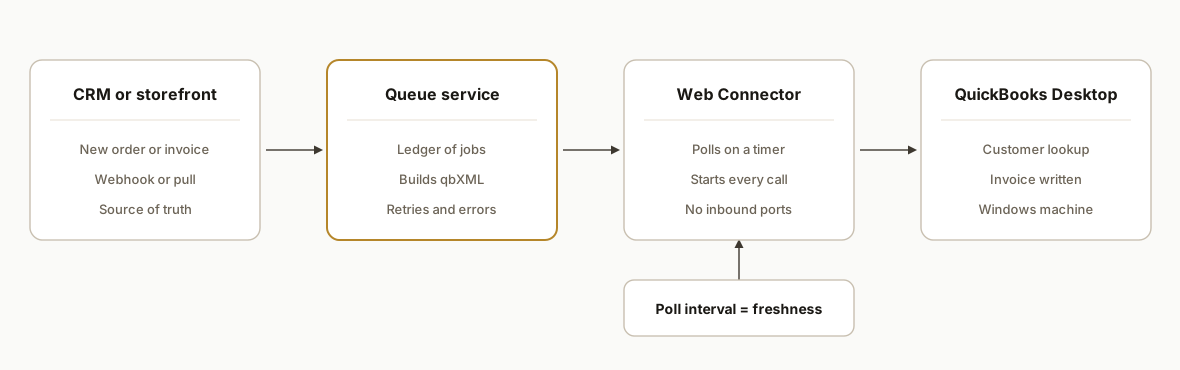
The components we build:
- Source adapter: receives the order or invoice event from your CRM or storefront (webhook or scheduled pull) and stores it. It never talks to QuickBooks directly.
- Queue and ledger: a database table holding each pending job, its status, the source record ID, and the QuickBooks transaction ID once written. This is what prevents double invoices.
- qbXML builder: turns a queued order into a customer lookup, a customer add if missing, and an invoice add request, using the SDK's message formats.
- QBWC SOAP endpoint: the web service the Web Connector calls. It hands out the next request and receives the response.
- Reconciliation view: shows what is queued, written, or failed, with the QuickBooks error text, so a bookkeeper can act without a developer.
The Desktop SDK ships the qbXML specification, an examples file with samples of every request and response message, and a qbXML validator (Intuit: Desktop SDK components). We validate every generated message against it before it leaves our service.
Step-by-step: how to build it
Step 1: Confirm the QuickBooks version and spec level
The latest spec version Intuit lists is 17.0, released with SDK 17.0, and it supports U.S. and Canadian editions of QuickBooks 2024 (R18 and above) and QuickBooks 2023 (R16 and above) (Intuit: SDK compatibility with QuickBooks releases). Check the edition and release your file actually runs, and pin your qbXML version to something that release supports. Older files need an older spec version, which limits some fields.
<?xml version="1.0"?>
<?qbxml version="13.0"?>
Gotcha: a request using a newer spec version than the installed QuickBooks supports is rejected, so test against the same release your target company file runs, not your dev machine.
Step 2: Register the service with a .qwc file
The .qwc file tells the Web Connector where your service lives and how often to poll. The client loads it once in the Web Connector and enters a password for that service.
<?xml version="1.0"?>
<QBWCXML>
  <AppName>Order Sync</AppName>
  <AppID></AppID>
  <AppURL>https://sync.example.com/qbwc</AppURL>
  <AppDescription>Orders to invoices</AppDescription>
  <AppSupport>https://sync.example.com/support</AppSupport>
  <UserName>orders-sync</UserName>
  <OwnerID>{generate-a-guid}</OwnerID>
  <FileID>{generate-a-guid}</FileID>
  <QBType>QBFS</QBType>
  <Scheduler>
    <RunEveryNMinutes>15</RunEveryNMinutes>
  </Scheduler>
</QBWCXML>
Gotcha: the OwnerID and FileID GUIDs must stay stable. Regenerate them and the Web Connector treats it as a different service. Confirm element details against the QBWC programmer's guide before shipping.
Step 3: Implement the SOAP methods
The Web Connector calls a fixed set of methods on your endpoint. The core loop is authenticate, then repeated sendRequestXML and receiveResponseXML until you have nothing left, then closeConnection.
// Conceptual skeleton, framework-agnostic
const handlers = {
  authenticate(user, pass) {
    if (!checkCredentials(user, pass)) return [null, 'nvu'];
    const ticket = newSessionTicket();
    // empty string means: use the currently open company file
    return [ticket, hasPendingJobs() ? '' : 'none'];
  },
  sendRequestXML(ticket) {
    const job = nextPendingJob(ticket);
    return job ? buildQbxml(job) : '';
  },
  receiveResponseXML(ticket, response, hresult, message) {
    if (hresult) return recordFailure(ticket, hresult, message);
    return recordResultAndGetPercentDone(ticket, response);
  },
  closeConnection(ticket) { return 'OK'; }
};
Gotcha: receiveResponseXML must return progress, and returning a negative value signals an error. A sloppy return value makes the Web Connector stop or loop. The guide's appendix covers QBWC error codes, and we log every one.
Step 4: Build idempotent invoice requests
Each queued order becomes a customer check and an invoice add. Put your source order number in the reference field so a person can find it in QuickBooks, and store the returned transaction ID in your ledger.
<QBXML>
  <QBXMLMsgsRq onError="stopOnError">
    <InvoiceAddRq requestID="ORD-10482">
      <InvoiceAdd>
        <CustomerRef><FullName>Acme Supply</FullName></CustomerRef>
        <TxnDate>2026-10-23</TxnDate>
        <RefNumber>ORD-10482</RefNumber>
        <InvoiceLineAdd>
          <ItemRef><FullName>Widget A</FullName></ItemRef>
          <Quantity>12</Quantity>
          <Rate>8.50</Rate>
        </InvoiceLineAdd>
      </InvoiceAdd>
    </InvoiceAddRq>
  </QBXMLMsgsRq>
</QBXML>
Gotcha: set the requestID to your ledger key so the response maps back to the right job. Before every add, query for an existing invoice with that reference number, otherwise a retry after a timeout creates a duplicate.
Step 5: Map customers and items explicitly
QuickBooks matches by name. Your CRM matches by ID. Keep a mapping table from source customer ID and SKU to the QuickBooks full name, and create missing customers with a separate add request that runs first.
create table qb_map (
  kind text,            -- 'customer' or 'item'
  source_id text,
  qb_full_name text,
  qb_list_id text,
  primary key (kind, source_id)
);
Gotcha: renaming a customer in QuickBooks breaks name-based lookups. Store the list ID returned by QuickBooks and prefer it once you have it.
Step 6: Add the failure queue and the reconciliation view
Anything QuickBooks rejects (unknown item, closed period, a locked file) lands in a failed state with the exact error text. A person fixes the data, flips the job back to pending, and the next poll retries it.
update sync_jobs
set status = 'pending', attempts = attempts + 1
where id = :job_id and status = 'failed';
Gotcha: do not auto-retry validation errors forever. Retry transient errors a few times, then stop and surface them.
Where it gets complicated
Polling only, so there is no real time. The Web Connector initiates every connection, so QuickBooks cannot push events to your CRM or storefront. Your service queues work and waits for the next poll. Promise the client a freshness window equal to the poll interval, not instant sync.
The machine has to be on and QuickBooks reachable. The Web Connector runs on Windows alongside QuickBooks. If the workstation is asleep, logged out, or the company file is closed or held in single-user mode by someone else, the poll does nothing. We design for the sync to resume cleanly instead of assuming it always runs. A company file on a Mac or a hosted server needs extra setup that we did not confirm in the sources we used, so we scope that case separately.
TLS and version drift. A search summary of Intuit's documentation says Web Connector 2.1.0.30 and older support only TLS 1.0. We did not open that page, so verify it for the Web Connector version on the client machine, and update the Web Connector before choosing your endpoint's TLS settings.
Rate limits are unconfirmed. We found no documented rate limit for this path, so we do not state one. In practice the constraint is local: one request at a time through a desktop application. Batch sensibly and measure on the real file, which can be large and slow.
Duplicates are the real risk. Timeouts, a closed file mid-poll, or a service redeploy can leave you unsure whether an invoice was written. The ledger plus a lookup by reference number before every add is what keeps the books clean.
Two-way sync is a separate project. Pushing orders in is a bounded job. Pulling payments or inventory back out to the CRM is possible through query requests, but it multiplies the mapping and conflict rules. We scope it as a second phase.
What this actually changes
We have not tied this pattern to a named deployment, so we will not quote a client result. What the architecture changes is structural. Re-keying stops, because the order record is the single source and the invoice is generated from it. Errors become visible, because every rejected job sits in a queue with QuickBooks' own message instead of surfacing at month end. And the sync survives staff changes, because the mapping and retry rules live in a ledger, not in one person's habits.
On cost and time, our planning assumption is that a one-direction order-to-invoice sync with customer and item mapping is a build measured in weeks, not days, and we quote a fixed fee only after we have the list of objects, the QuickBooks release, and a sample of your messiest orders. The scope driver is the number of object types and the cleanliness of your item and customer names, not the number of orders.
Frequently asked questions
Does QuickBooks Desktop have an API?
Not a cloud REST API that we could confirm. The documented route is the Desktop SDK, which uses qbXML messages, and most integrations run through the QuickBooks Web Connector. If a vendor offers you a simple REST endpoint for Desktop, ask what software on the Windows machine is translating it.
Can Zapier or Make connect to QuickBooks Desktop?
We found no native Desktop connector for Zapier, and a Zapier community staff reply said QuickBooks Online is the only version supported. Make's page does not say which edition it covers, so we treat Desktop support as unconfirmed. Check the module list in your own account before planning around it.
Can QuickBooks Desktop send webhooks when an invoice is created?
We found no webhook support. The Web Connector starts every connection, so QuickBooks cannot push to you. The workaround is to poll through the Web Connector and query for new or changed transactions on each run.
Do I need to open firewall ports on the QuickBooks machine?
No inbound ports. Because the Web Connector initiates all communication outward to your web service, the office network only needs to allow that outbound HTTPS call. The machine still has to be powered on with the Web Connector running.
Can I just export CSVs and import them instead?
Yes, for low volume. Reports export to Excel, CSV or PDF, and scheduled reports can be emailed. That path is outbound and manual, though. It does not create invoices for you, so it stops scaling once order volume or error cost goes up.
Is it worth moving to QuickBooks Online instead?
Sometimes, especially if you want standard connectors. But migration has its own cost and data mapping work, and many shops stay on Desktop for inventory or reporting reasons. We build the sync for whichever you run, and we will tell you plainly if migration is the cheaper route.
If your orders live in a CRM or storefront and your books live in QuickBooks Desktop, this is the pattern we use under workflow automation. For a related integration with the same trap of a system that cannot push events, see our guide on syncing Towbook invoices to QuickBooks. When you are ready to scope yours, book a 20 minute call and bring your QuickBooks release and a sample of your messiest orders.
Sources
- 1.Get started with QuickBooks web connectordeveloper.intuit.com
- 2.Desktop SDK componentsdeveloper.intuit.com
- 3.SDK compatibility with QuickBooks releasesdeveloper.intuit.com
- 4.QBWC proguidestatic.developer.intuit.com
Want us to build this for you?
Nine questions, about 90 seconds. You see the revenue it is costing you, then pick a time. No pitch.
See your options