
Typeform to Google Sheets with attachments works by listening to Typeform webhooks, downloading each answer's file_url immediately, saving the file into a Google Drive folder, then writing a structured row to Google Sheets that contains stable Drive links. We built this to stop link rot and to give ops teams a single sheet of truth. This guide shows the production pattern we shipped and the exact code we used.
Typeform upload automation is: a webhook-driven flow that moves uploaded files from Typeform into your storage and writes a clean, linked record to your spreadsheet.
The problem it solves
Most teams export Typeform to Sheets and discover the files are missing. Typeform's native Google Sheets export does not include uploaded files. The file_url in response payloads is a temporary, Typeform-hosted link. If you wait, it expires. Our production systems download each file as soon as the response arrives, store it in Drive, and write the permanent Drive URL into the sheet alongside all other answers.
| Task | Manual process | Automated system |
|---|---|---|
| Get new responses | Log in, download CSV or open Results | Webhook fires on every submit |
| Save uploads | Click each file link, save to Drive folders | Script downloads and files into the correct Drive folder |
| Record file locations | Paste links into a sheet next to each row | Writes Drive links into the right columns automatically |
| Handle multiple files | Repeat save and paste for each upload | Loops through all file answers and appends Drive links |
| Prevent link rot | Remember to download before links expire | Downloads immediately and stores a stable Drive URL |
Two hard facts drive this design: Typeform responses include a file_url for File Upload answers, and those links are meant for retrieval then storage elsewhere. The developer docs note a rate limit for Create and Responses API of 2 requests per second per account, so batching and light retry logic matter in busy forms. Sources: Typeform developer docs on responses and rate limits: https://www.typeform.com/developers/get-started/ and JSON response explanation: https://www.typeform.com/developers/responses/JSON-response-explanation/
How the automation works
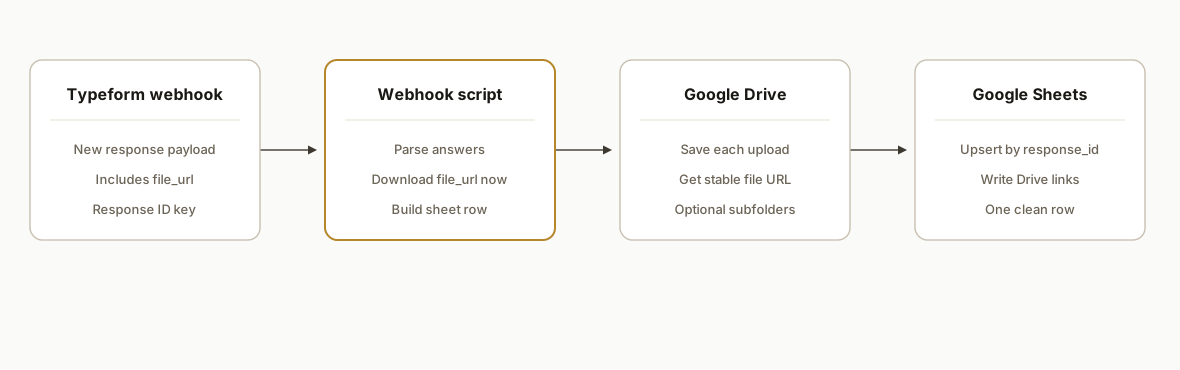
We register a Typeform webhook on the form. When someone submits, Typeform POSTs the response to our endpoint. The script extracts fields, finds any File Upload answers, downloads each file_url right away, writes the files to a Drive folder, and then logs one normalized row in Sheets with Drive links. We key rows by Typeform response_id for idempotency, so you can update rows without duplicates. For historical imports and ongoing sync, see reliable backfill and sync.
- Typeform webhook: We create or update a webhook at forms//webhooks/. The webhook sends each response in near real time. Source: Typeform webhooks reference: https://www.typeform.com/developers/webhooks/
- Immediate file fetch: The payload contains file_url for File Upload answers. We fetch each file right away and do not store the expiring Typeform link. Source: Typeform JSON response explanation: https://www.typeform.com/developers/responses/JSON-response-explanation/
- Drive storage: Each file is written into a target Drive folder, optionally inside a per-response subfolder for tidy audit trails.
- Sheets row write: We map answers to headers, set a unique key as the Typeform response_id, and write Drive hyperlinks into the file columns.
- Rate and size awareness: File Upload questions limit individual files to 10 MB. The Responses API is rate limited to 2 requests per second per account. Sources: File Upload question help: https://help.typeform.com/hc/en-us/articles/360051567012 and developer rate limits: https://www.typeform.com/developers/get-started/
Can you just use the native Typeform Google Sheets integration?
Yes if you only need text, email, and choice answers. No if you need file uploads. The built-in integration connects a form to a sheet and appends new rows, but it does not include uploaded files. Our pattern runs in parallel when you need Drive links that do not expire. If you are deciding between tools, see our comparison of Make vs n8n vs Apps Script for when a script beats a no-code route.
Quick path to try native first:
- In Typeform, open the form, go to Connect. Pick Google Sheets and follow the prompts.
- Confirm new submissions append rows. If you also need uploads, keep the native link for quick visibility and add the webhook flow here to handle files.
Step-by-step: how to build it
1) Add a File Upload to your Typeform and note the question ref
Keep the question's ref short and stable. We use the ref to map the upload column in Sheets. The per-file size cap is 10 MB, so set expectations in the form copy if you expect larger files. Source: https://help.typeform.com/hc/en-us/articles/360051567012
Form setup checklist:
- Add File Upload question, note its ref (e.g., upload_cv)
- Add any text, email, and select questions with clear refs
- Publish the form and copy the Form ID from the Typeform UI
Key gotcha: the export-to-Sheets feature is not enough for files. Plan for a webhook and your own storage. Source: https://help.typeform.com/hc/en-us/articles/360029253732
2) Create the Google Sheet and headers
Make a sheet with headers that match your fields. Include response_id, submitted_at, and one column per question ref. For file columns, we store a clickable Drive link.
Headers example:
response_id | submitted_at | email | full_name | upload_cv_link | extras
Tip: keep the sheet tab name stable. We target it by name in code to avoid column drift.
3) Deploy a Google Apps Script Web App as the webhook handler
Apps Script is a fast way to handle webhooks and talk to Drive and Sheets in one place. Deploy as a Web App that accepts anyone with the link. Store secrets in Properties Service.
// Code.gs (Apps Script)
const CFG = {
  SHEET_NAME: 'Responses',
  DRIVE_PARENT: 'YOUR_DRIVE_FOLDER_ID',
};

function doPost(e) {
  const body = JSON.parse(e.postData.contents);
  const resp = normalizeTypeform(body);
  const files = saveFiles(resp.fileAnswers);
  const row = buildRow(resp, files);
  upsertRow(row);
  return ContentService.createTextOutput('OK');
}

function normalizeTypeform(payload) {
  const r = payload.form_response || payload; // support both shapes
  const map = {};
  const fileAnswers = [];
  for (const ans of (r.answers || [])) {
    const ref = ans.field && ans.field.ref;
    if (!ref) continue;
    if (ans.type === 'file_url' || ans.type === 'file') {
      const urls = Array.isArray(ans.file_url) ? ans.file_url : [ans.file_url || ans.file];
      fileAnswers.push({ ref, urls: urls.filter(Boolean) });
      continue;
    }
    map[ref] = ans[ans.type] ?? '';
  }
  return {
    id: r.token || r.response_id,
    submitted_at: r.submitted_at,
    fields: map,
    fileAnswers,
  };
}

function saveFiles(fileAnswers) {
  const out = {};
  for (const fa of fileAnswers) {
    const links = [];
    for (const u of fa.urls) {
      const resp = UrlFetchApp.fetch(u, { muteHttpExceptions: true });
      if (resp.getResponseCode() >= 200 && resp.getResponseCode() < 300) {
        const blob = resp.getBlob();
        const name = blob.getName() || `upload-${Date.now()}`;
        const file = DriveApp.getFolderById(CFG.DRIVE_PARENT).createFile(blob.setName(name));
        links.push(file.getUrl());
      }
    }
    out[fa.ref] = links;
  }
  return out;
}

function buildRow(resp, filesByRef) {
  return {
    response_id: resp.id,
    submitted_at: resp.submitted_at,
    ...resp.fields,
    ...Object.fromEntries(Object.entries(filesByRef).map(([ref, links]) => [
      `${ref}_link`, links.join(', ')
    ])),
  };
}

function upsertRow(obj) {
  const ss = SpreadsheetApp.getActive();
  const sh = ss.getSheetByName(CFG.SHEET_NAME);
  const headers = sh.getRange(1,1,1,sh.getLastColumn()).getValues()[0];
  const keyIdx = headers.indexOf('response_id') + 1;
  const data = sh.getRange(2, keyIdx, sh.getLastRow()-1 || 1, 1).getValues();
  const idx = data.findIndex(r => r[0] === obj.response_id);
  const rowArray = headers.map(h => obj[h] ?? '');
  if (idx >= 0) {
    sh.getRange(idx+2, 1, 1, headers.length).setValues([rowArray]);
  } else {
    sh.appendRow(rowArray);
  }
}
Key gotcha: the file_url expires. Fetch it immediately inside doPost. Source: https://www.typeform.com/developers/responses/JSON-response-explanation/
4) Register the Typeform webhook to your Web App URL
In Typeform, create or update the webhook for your form. Use forms slash form_id slash webhooks slash tag. Send a test delivery and confirm you see a new row in the sheet with a working Drive link.
# Shape of a curl to create or update a webhook (reference only)
# Authorization uses a Typeform personal access token in the header.
# Base URL: https://api.typeform.com or the EU variants shown in docs.
# Docs: https://www.typeform.com/developers/webhooks/reference/create-or-update-webhook/
Important: pick the correct base URL if your account is in the EU. Developer docs list the EU variants. Source: https://www.typeform.com/developers/get-started/
5) Map multiple files and set hyperlinks for readability
If a question allows multiple uploads, we join links with a comma. For nicer UX, set rich text values so the visible text is the filename and the cell is clickable.
function prettifyLinks() {
  const sh = SpreadsheetApp.getActive().getSheetByName(CFG.SHEET_NAME);
  const headers = sh.getRange(1,1,1,sh.getLastColumn()).getValues()[0];
  const last = sh.getLastRow();
  if (last < 2) return;
  const data = sh.getRange(2,1,last-1,headers.length).getValues();
  const fileCols = headers
    .map((h,i) => ({h,i}))
    .filter(x => x.h.endsWith('_link'))
    .map(x => x.i);
  for (let r = 0; r < data.length; r++) {
    for (const c of fileCols) {
      const cell = sh.getRange(r+2, c+1);
      const urls = String(data[r][c]).split(',').map(s => s.trim()).filter(Boolean);
      if (!urls.length) continue;
      const b = SpreadsheetApp.newRichTextValue();
      if (urls.length === 1) {
        b.setText('Open file').setLinkUrl(urls[0]);
      } else {
        b.setText('Open files').setLinkUrl(urls[0]);
      }
      cell.setRichTextValue(b.build());
    }
  }
}
6) Add light backoff to stay under Typeform limits
Bursting many concurrent downloads can collide with Typeform's rate limits. The Create and Responses APIs document 2 requests per second per account. Sleep between fetches and add simple retries on 429 and 5xx.
function safeFetch(url) {
  for (let i = 0; i < 4; i++) {
    const resp = UrlFetchApp.fetch(url, { muteHttpExceptions: true });
    const code = resp.getResponseCode();
    if (code >= 200 && code < 300) return resp;
    if (code === 429 || code >= 500) Utilities.sleep((i+1) * 400);
    else break;
  }
  throw new Error('Download failed: ' + url);
}
Source for limits: https://www.typeform.com/developers/get-started/
Capture email answers and send confirmations from Sheets
Near-miss query: connect email, Google Sheets, Typeform. The email answer arrives in the webhook payload. We write it to the email column and, if needed, send a confirmation using Gmail from the same Apps Script. Keep the subject and body short and include the Drive link if that helps the submitter.
// Add inside doPost after upsertRow(row)
try {
  const email = row.email || row.user_email || '';
  if (email) {
    GmailApp.sendEmail(email, 'We received your submission',
      'Thanks for your submission. We saved your files and logged your details.');
  }
} catch (err) {
  console.log('Email send skipped: ' + err);
}
If you also need to sync replies into a CRM later, see our guide on syncing Gmail and leads to your CRM.
Typeform to JSON: archive raw responses for audit
If compliance asks for an immutable copy of each submission, save the raw webhook payload to Drive as JSON alongside the uploaded files. This lets you reconcile any mapping issues later without re-polling.
function archiveRawPayload(folderId, respId, payload) {
  const name = `typeform-${respId}.json`;
  const content = JSON.stringify(payload, null, 2);
  DriveApp.getFolderById(folderId).createFile(name, content, MimeType.PLAIN_TEXT);
}

// Call it from doPost:
archiveRawPayload(CFG.DRIVE_PARENT, resp.id, body);
For more patterns like this across other form tools, see our walkthroughs for Gravity Forms to Google Sheets with uploads and Contact Form 7 to Google Sheets with uploads.
Where it gets complicated
Expiring file links. Typeform's file_url is not a permanent CDN link. If you log the URL and come back later, it can be dead. Always download on receipt, then store your own link. Source: https://www.typeform.com/developers/responses/JSON-response-explanation/
Native Sheets export missing files. The built-in Sheets export intentionally does not include uploaded files. If you rely on it, you will not have attachments in your sheet. Bridge it with webhooks and Drive. Source: https://help.typeform.com/hc/en-us/articles/360029253732
Zapier file handling quirks. If you use Zapier for Drive uploads, Google Drive's step expects a real file object or a publicly accessible URL. Passing an expiring or private link will fail. Source: https://help.zapier.com/hc/en-us/articles/28416820744333-Google-Drive-error-Required-field-file-file-is-missing
Multiple uploads per question. Typeform can return multiple file URLs for one File Upload answer. Your sheet mapping must handle arrays and write either multiple hyperlink cells or a delimited list.
EU vs US endpoints. If your Typeform account is in the EU, use the documented EU base URLs. Mixing regions can produce auth or 404 surprises. Source: https://www.typeform.com/developers/get-started/
Rate limits under bursty traffic. Responses and file fetches above 2 requests per second can produce 429s. Add backoff and consider queueing when you expect spikes. Source: https://www.typeform.com/developers/get-started/
What this actually changes
In production this removed the two places attachments get lost: delayed downloads and manual pasting. New Typeform submissions now appear in the sheet within seconds with stable Drive links the team can click. The structural win is permanence: we swap expiring file_url links for owned Drive URLs and keep a response_id key so the sheet can be safely re-run for backfills and continuous sync.
Two vendor facts shaped our design and runtime. File Upload questions cap individual files at 10 MB, so we tell submitters about size expectations and avoid surprise failures. The Responses API is rate limited to 2 requests per second per account, so we added light backoff to avoid 429 errors during campaign spikes. Sources: Typeform File Upload help: https://help.typeform.com/hc/en-us/articles/360051567012 and developer rate limits: https://www.typeform.com/developers/get-started/
Frequently asked questions
Does Typeform include file links in the Google Sheets export?
No. Typeform's native Sheets export does not include uploaded files. Use a webhook-driven flow to download files immediately and store your own Drive links in the sheet. Source: Typeform help center on working with responses.
Do Typeform file URLs expire?
Yes. The file_url in response payloads is a Typeform-hosted link intended for retrieval then storage elsewhere. Download right away and store a stable link in your system. Source: Typeform JSON response explanation.
Can I do this with Zapier or Make instead of a script?
Yes. Both have official Typeform integrations and can upload files to Drive. Ensure the Drive step receives a real file object or a publicly accessible URL, and write the resulting Drive link into Sheets. Be aware of expiring links and handle them promptly. Sources: Typeform connect Make, Zapier blog and help.
How do you prevent duplicates in the sheet?
Use the response_id as a unique key and upsert rows without duplicates.
Can it handle multiple file uploads in one question?
Yes. The response can carry multiple file URLs for a single File Upload field. Loop through the array, save each file, and write the joined set of Drive links into the corresponding column.
Is this real time?
Webhooks arrive within seconds of submission. The file download and Drive write add only a small delay. Under spikes, add light backoff to stay under the 2 requests per second per account limit documented by Typeform.
Can I connect Google Sheets, Livestorm, and Typeform for event signups?
Yes. Treat Sheets as the source of truth. Collect Typeform submissions to Sheets with this webhook pattern, then register attendees to your webinar or event using a connector or a CSV import flow provided by your event platform. Where an official connector is missing, bridge with Make or Apps Script and keep Sheets as your audit log. See our overview of tools to connect your apps.
If you need Typeform files landing in Drive and a clean, linked row in Sheets every time, we have shipped this exact pattern in production. See our broader workflow automation services at /services#workflow-automation, and for a related how-to see /blog/jotform-to-google-sheets-with-attachments. When you are ready to scope yours, book a short call at /book.
Want us to build this for you?
Nine questions, about 90 seconds. You see the hours it is costing you, then pick a time. No pitch.
Get your free assessment