
Our standard pattern is a production-safe flow that takes every Contact Form 7 submission straight into a Google Sheet, uploads any attached files to Google Drive, and forwards an email to your team with the submission data and secure file links. It is for WordPress sites that cannot afford to miss a lead because an email failed or a large attachment was stripped. This post shows the exact architecture, code, and gotchas we solved.
Contact Form 7 to Google Sheets automation is: a webhook from WordPress to a Google Apps Script that sanitizes fields, appends a row to a Sheet, streams uploaded files to Drive, and sends a confirmation or internal forward so nothing is missed.
The problem it solves
Most sites run CF7 as email only. When email hiccups or an attachment exceeds limits, you lose the submission. CF7 core does not store entries by default. The Flamingo add-on stores messages and exports CSV, but it does not put structured rows into your live sheet or move files into Drive for easy sharing.
| Manual CF7 email only | Automated CF7 to Sheets + Drive |
|---|---|
| Submissions can disappear when email fails. | Every submission is logged to a Sheet first, then emailed. |
| Attachments hit size caps or get stripped. | Files upload to Drive. Email contains links and optional small attachments. |
| No central reporting. | One live Sheet becomes your source of truth. |
| Re-keying into CRMs and trackers. | Sheet rows feed downstream automations without copy paste. |
Two CF7 facts matter for reliability: CF7 core does not store submissions unless you add Flamingo, and file attachments are subject to size limits. CF7 warns about a 25 MB total attachment cap and advises using a specialized service for large files. Source: contactform7.com/file-uploading-and-attachment.
What instant form intake is worth
Move the sliders to your own numbers. The defaults are only an example business, not client data.
Revenue from submissions you stop losing each year
$90,000
200 a month × 12 × 25% × 10% × $1500
- Extra customers a year
- 60
- 200 × 12 × 25% × 10%
- Staff cost of handling it by hand each year
- $5,600
- 200 × 4 min × $35/hr × 12
- Hours handed to the system each month
- 13 hrs
- 200 × 4 min ÷ 60
How the automation works
The flow is lightweight and WordPress friendly. We do not depend on third-party CF7 cloud apps. We post directly to a Google Apps Script web app that writes to Sheets and Drive.
- Contact Form 7 on WordPress: your existing form, including file fields. CF7 AJAX posts through the WordPress REST API. If the REST API is disabled or misrouted, CF7 submissions can break. Source: contactform7.com/faq.
- WordPress sender: a small functions.php hook packages submitted fields and any uploaded files, then POSTs JSON to our Apps Script URL. If you prefer no code, a CF7 to Webhook add-on works too.
- Apps Script engine: receives JSON, sanitizes values for spreadsheet safety, appends a row to your Google Sheet, converts base64 files to Blobs, writes them to Drive, then emails a forward with links and optionally small attachments.
- Flamingo as a safety net: stores the raw message inside WordPress so even if your Google quota blips, the entry is still retrievable. Source: wordpress.org/plugins/flamingo.
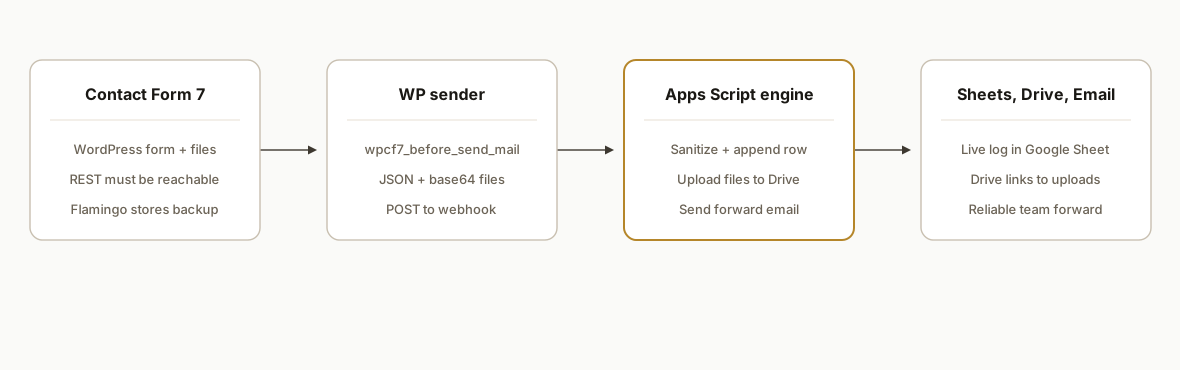
Contact Form 7 to Google Sheets: plugin vs code
Both paths work. Pick the one that matches your constraints.
- Webhook plugin: fastest to ship. Configure a CF7 webhook to POST JSON to Apps Script. Add-ons vary in how they include files. Most send file URLs or base64. If your plugin cannot include base64, push metadata only and let Apps Script pull later with an authenticated fetch.
- Theme or mu-plugin code: most control. Our wpcf7_before_send_mail hook captures files reliably, encodes base64, and ships a single JSON payload. Fewer moving parts and predictable structure.
- Attachment handling: do not push binaries into Sheets. We always store uploads in Drive, then write Drive links into the row. This is the same pattern we run for other form stacks like our guides for Gravity Forms to Google Sheets with uploads and Elementor Forms to Google Sheets with uploads.
Quick start: CF7 to Google Sheets without PHP
If you cannot edit theme files, use a CF7 webhook plugin.
- Deploy the Apps Script from this post and copy the Web App URL.
- In CF7, install a webhook add-on and paste the Web App URL.
- Configure payload: send JSON with your CF7 field keys and include files as base64 if your add-on supports it. Minimum mapping:
{
  "fields": {
    "your-name": "[your-name]",
    "your-email": "[your-email]",
    "your-message": "[your-message]"
  },
  "files": [
    {
      "filename": "[your-file.filename]",
      "mimeType": "[your-file.mimetype]",
      "base64": "[your-file.base64]"
    }
  ]
}
- Test with and without a file. If your plugin only sends a temporary file URL, modify Apps Script to fetch and store it server side. Keep it authenticated to avoid exposing uploads publicly.
For other hosted form tools, we apply the same Drive-first pattern. See Typeform to Google Sheets with uploads for an adapter example.
Step-by-step: how to build it
Answer first: you will deploy an Apps Script web app, then point CF7 at it. Apps Script sanitizes and stores the data and files, and sends the forward.
1) Prepare CF7 and add Flamingo
Install and activate Flamingo so CF7 messages are stored in WordPress. CF7 does not store submissions otherwise. Source: contactform7.com/save-submitted-messages-with-flamingo.
Add or confirm your file field in CF7. Example CF7 markup:
[text* your-name]
[email* your-email]
[textarea your-message]
[file your-file limit:25mb]
[submit "Send"]
CF7 warns about a 25 MB total attachment cap. For anything large, plan to store in Drive and email links. Source: contactform7.com/file-uploading-and-attachment.
Key gotcha: CF7 relies on the WordPress REST API for AJAX. Make sure the REST route is reachable at /wp-json. Language-prefixed REST URLs or security plugins that block REST can break submissions. Source: contactform7.com/faq.
2) Create the Google Apps Script web app
Create a new Apps Script project and add the following. This receives JSON, sanitizes values, appends a row, and uploads base64 files to Drive.
// File: Code.gs
const SHEET_ID = 'YOUR_SHEET_ID';
const DRIVE_FOLDER_ID = 'YOUR_DRIVE_FOLDER_ID';
const FORWARD_TO = 'team@example.com';

function doPost(e) {
  try {
    const data = JSON.parse(e.postData.contents);
    const sheet = SpreadsheetApp.openById(SHEET_ID).getSheetByName('Submissions') ||
                  SpreadsheetApp.openById(SHEET_ID).insertSheet('Submissions');

    const row = buildRow(data);
    sheet.appendRow(row.values);

    const fileLinks = saveFiles(data.files || []);
    sendForward(row.map, fileLinks);

    return ContentService.createTextOutput(JSON.stringify({ ok: true }))
      .setMimeType(ContentService.MimeType.JSON);
  } catch (err) {
    return ContentService.createTextOutput(JSON.stringify({ ok: false, error: String(err) }))
      .setMimeType(ContentService.MimeType.JSON);
  }
}

function buildRow(data) {
  const ts = new Date();
  const map = {
    timestamp: ts.toISOString(),
    name: sanitize(data.fields?.name || data.fields?.['your-name'] || ''),
    email: sanitize(data.fields?.email || data.fields?.['your-email'] || ''),
    message: sanitize(data.fields?.message || data.fields?.['your-message'] || ''),
  };
  const values = [map.timestamp, map.name, map.email, map.message];
  return { map, values };
}

function sanitize(v) {
  if (typeof v !== 'string') return v;
  // Spreadsheet formula injection guard: prefix risky starts with an apostrophe
  if (/^[=+\-@]/.test(v)) return "'" + v;
  return v;
}

function saveFiles(files) {
  const folder = DriveApp.getFolderById(DRIVE_FOLDER_ID);
  const links = [];
  files.forEach(f => {
    try {
      const blob = Utilities.newBlob(Utilities.base64Decode(f.base64), f.mimeType || 'application/octet-stream', f.filename || 'upload');
      const driveFile = folder.createFile(blob);
      links.push({ name: driveFile.getName(), url: driveFile.getUrl(), size: blob.getBytes().length });
    } catch (e) {
      links.push({ name: f.filename || 'upload', url: 'ERROR: ' + String(e) });
    }
  });
  return links;
}

function sendForward(rowMap, fileLinks) {
  const subject = `New CF7 submission: ${rowMap.name || 'Unknown'}`;
  const body = [
    'A new Contact Form 7 submission was received.',
    '',
    `Name: ${rowMap.name}`,
    `Email: ${rowMap.email}`,
    '',
    'Message:',
    rowMap.message,
    '',
    'Files:',
    ...(fileLinks.length ? fileLinks.map(l => `- ${l.name}: ${l.url}`) : ['- none'])
  ].join('\n');

  // Attach only small files to avoid email caps. Always include links above.
  const smallBlobs = [];
  try {
    fileLinks.forEach(l => {
      // We cannot re-fetch from Drive without permissions. If you want attachments, pass base64 along too.
      // This example sticks to link-only for large files to avoid the 25 MB email cap CF7 warns about.
    });
  } catch (_) {}

  MailApp.sendEmail({ to: FORWARD_TO, subject, htmlBody: body.replace(/\n/g, '<br>'), body });
}
Deploy as a Web App: Deploy, New deployment, type Web app, execute as Me, allow Anyone with the link. Copy the Web App URL.
3) Add a WordPress sender hook for CF7
Add this to your theme's functions.php or a small mu-plugin. It packages posted fields and base64-encodes uploaded files, then POSTs JSON to your Apps Script URL.
// File: functions.php
add_action('wpcf7_before_send_mail', function($contact_form) {
  if (!class_exists('WPCF7_Submission')) return;
  $sub = WPCF7_Submission::get_instance();
  if (!$sub) return;

  $posted = $sub->get_posted_data();
  $uploads = $sub->uploaded_files(); // [field_name => file_path or array]

  $payload = [
    'fields' => [
      'your-name' => isset($posted['your-name']) ? $posted['your-name'] : '',
      'your-email' => isset($posted['your-email']) ? $posted['your-email'] : '',
      'your-message' => isset($posted['your-message']) ? $posted['your-message'] : ''
    ],
    'files' => []
  ];

  foreach ($uploads as $field => $paths) {
    $pathsArr = is_array($paths) ? $paths : [$paths];
    foreach ($pathsArr as $path) {
      if (!$path || !file_exists($path)) continue;
      $payload['files'][] = [
        'filename' => basename($path),
        'mimeType' => function_exists('mime_content_type') ? mime_content_type($path) : 'application/octet-stream',
        'base64' => base64_encode(file_get_contents($path))
      ];
    }
  }

  $resp = wp_remote_post('https://script.google.com/macros/s/YOUR_DEPLOYMENT_ID/exec', [
    'timeout' => 12,
    'headers' => [ 'Content-Type' => 'application/json' ],
    'body' => wp_json_encode($payload)
  ]);

  // Optional: log non-200s with error_log for ops visibility
  if (is_wp_error($resp) || wp_remote_retrieve_response_code($resp) >= 300) {
    error_log('CF7->AppsScript push failed: ' . (is_wp_error($resp) ? $resp->get_error_message() : wp_remote_retrieve_body($resp)));
  }
});
If you prefer no code, use a CF7 webhook add-on and point it at the Apps Script URL. Zapier does not offer a native CF7 app. Use Webhooks by Zapier or a CF7 webhook plugin. Source: zapier.com and apps.make.com for CF7 via webhooks.
4) Append a header row and test
In your Sheet, add a header row for Submissions: Timestamp, Name, Email, Message. Submit your CF7 form with and without a file. Confirm that:
- A new row appears per submission.
- A Drive file is created per upload in your folder.
- The forward email contains the Drive links.
5) Harden spreadsheet safety and logging
CF7 posted values can include leading equals or plus. That can trigger a spreadsheet formula if pasted raw. We prefixed risky cells with an apostrophe in sanitize. CF7 published a note about spreadsheet vulnerabilities and why you should sanitize before feeding rows to a sheet. Source: contactform7.com/2020/01/15/heads-up-about-spreadsheet-vulnerabilities.
Add a second Sheet tab named Logs and push minimal event logs if you want an audit trail. You can also enable Apps Script Stackdriver logs for error triage.
function logEvent(kind, msg) {
  const ss = SpreadsheetApp.openById(SHEET_ID);
  const sheet = ss.getSheetByName('Logs') || ss.insertSheet('Logs');
  sheet.appendRow([new Date().toISOString(), kind, msg]);
}
6) Set email policy for large files
CF7 warns about a 25 MB total attachment cap in outgoing mail. To avoid bounces, we forward link-only by default. If you must attach small files, include a file size field in your JSON and attach only below a threshold.
function attachIfSmall(files) {
  const max = 4 * 1024 * 1024; // 4 MB
  return files.filter(f => f.size && f.size <= max).map(f => UrlFetchApp.fetch(f.url).getBlob());
}
We found links are safer and faster to route. If your team needs direct attachments, keep the threshold conservative and still include Drive links in the body.
Map custom fields and multiple uploads to columns
Answer first: add columns for your custom CF7 fields, then extend buildRow and the WordPress payload mapping. For multiple file fields, keep writing files to Drive and record their links in separate columns or a single semicolon list.
// Extend buildRow to include custom fields
function buildRow(data) {
  const ts = new Date();
  const get = k => sanitize(data.fields?.[k] || '');
  const map = {
    timestamp: ts.toISOString(),
    name: get('your-name'),
    email: get('your-email'),
    message: get('your-message'),
    company: get('your-company'),
    phone: get('your-phone')
  };
  const values = [map.timestamp, map.name, map.email, map.message, map.company, map.phone];
  return { map, values };
}
// Add your custom CF7 fields to the payload in functions.php
$payload['fields']['your-company'] = isset($posted['your-company']) ? $posted['your-company'] : '';
$payload['fields']['your-phone'] = isset($posted['your-phone']) ? $posted['your-phone'] : '';If you want one column with all file links, join them after saveFiles:
const fileLinks = saveFiles(data.files || []);
const joinedLinks = fileLinks.map(l => l.url).join('; ');
// Optionally write joinedLinks to a Files column
Create a per-submission Drive folder and rename files
For busy teams, a folder per submission makes review easier. Create a dated subfolder and rename files predictably.
function saveFiles(files) {
  const root = DriveApp.getFolderById(DRIVE_FOLDER_ID);
  const stamp = Utilities.formatDate(new Date(), Session.getScriptTimeZone(), 'yyyy-MM-dd_HH-mm-ss');
  const sub = root.createFolder(`CF7_${stamp}`);
  const links = [];
  files.forEach((f, i) => {
    try {
      const base = f.filename ? f.filename.replace(/\s+/g, '_') : `upload_${i+1}`;
      const blob = Utilities.newBlob(Utilities.base64Decode(f.base64), f.mimeType || 'application/octet-stream', base);
      const driveFile = sub.createFile(blob);
      links.push({ name: driveFile.getName(), url: driveFile.getUrl(), size: blob.getBytes().length, folder: sub.getUrl() });
    } catch (e) {
      links.push({ name: f.filename || `upload_${i+1}`, url: 'ERROR: ' + String(e) });
    }
  });
  return links;
}
You can also write sub.getUrl() into a Folder column so your team opens the folder once and finds every asset.
Secure the webhook: shared secret and spam controls
Lock the endpoint to your site with a shared secret header and rely on CF7 spam defenses.
// WordPress: add a shared secret header to the POST
$secret = 'CHANGE_THIS_LONG_RANDOM_SECRET';
$resp = wp_remote_post('https://script.google.com/macros/s/YOUR_DEPLOYMENT_ID/exec', [
  'timeout' => 12,
  'headers' => [
    'Content-Type' => 'application/json',
    'X-Webhook-Secret' => hash_hmac('sha256', 'cf7', $secret)
  ],
  'body' => wp_json_encode($payload)
]);
// Apps Script: verify the shared secret
function doPost(e) {
try {
const expected = Utilities.computeHmacSha256Signature('cf7', Utilities.newBlob('CHANGE_THIS_LONG_RANDOM_SECRET').getBytes());
const expectedB64 = Utilities.base64Encode(expected);
const got = (e?.parameter?.x || e?.headers?.['X-Webhook-Secret'] || '').toString();
if (!got || got !== expectedB64) throw new Error('unauthorized');
const data = JSON.parse(e.postData.contents);
// ... continue as before
} catch (err) {
return ContentService.createTextOutput(JSON.stringify({ ok: false, error: String(err) }))
.setMimeType(ContentService.MimeType.JSON);
}
}Notes:
- Keep the secret in both WordPress and Apps Script. Rotate if leaked.
- Leave CF7 reCAPTCHA and spam filtering on. The shared secret blocks outside calls, CF7 stops bots at the form.
Troubleshooting: errors when sending CF7 to Google Sheets
- 403 on Apps Script: ensure you deployed as a Web App, execute as Me, access set to Anyone with the link. Use the /exec URL, not /dev.
- 400 or 415 from Apps Script: your plugin might be sending form-encoded or multipart. Set Content-Type to application/json. If you cannot, add a branch in doPost to handle e.parameter.payload or multipart parsing.
- 413 payload too large: attachments are too big. Push to Drive and send links. Keep email light to protect deliverability.
- 302 or timeouts from WordPress: hosting firewalls can block outbound HTTP. Allow wp_remote_post to script.google.com and increase the timeout to cover file uploads.
- Drive link access denied: your team cannot open links outside your domain. Either share the folder with your team or explicitly set file sharing in Apps Script. Use with care if submissions contain PII:
// Risk note: opening access is optional and context dependent
// driveFile.setSharing(DriveApp.Access.ANYONE_WITH_LINK, DriveApp.Permission.VIEW);- REST still matters: even with a server-side hook, front-end CF7 UX relies on the REST API. Verify /wp-json loads and that security plugins are not blocking CF7 routes.
Make Drive links open: setSharing options explained
Answer first: keep files private by default, then enable link access only when your workflow requires it. The exact call buyers search for is setSharing(DriveApp.Access.ANYONE_WITH_LINK, DriveApp.Permission.VIEW).
function maybeOpenLink(driveFile, opts) {
  // opts: { sharing: 'private' | 'anyone' | 'domain', domainOnly?: boolean }
  if (!opts || opts.sharing === 'private') return;
  if (opts.sharing === 'domain') {
    // Workspace only. Visible to anyone in your Google Workspace with the link.
    driveFile.setSharing(DriveApp.Access.DOMAIN_WITH_LINK, DriveApp.Permission.VIEW);
    return;
  }
  if (opts.sharing === 'anyone') {
    // Public with the link. Safer for large-file handoffs, not for PII.
    driveFile.setSharing(DriveApp.Access.ANYONE_WITH_LINK, DriveApp.Permission.VIEW);
  }
}
Notes:
- Default to private. Call maybeOpenLink only for non-sensitive uploads or when recipients are outside your domain.
- For PII or contracts, keep private and share the parent folder with your team instead. Or add viewers programmatically with Drive.Permissions advanced service if you must target named accounts.
- The pattern above also applies in our Gravity Forms to Google Sheets with uploads and Jotform uploads to Google Sheets guides.
Get the right Apps Script URL: script.google.com/macros/s/.../exec
Answer first: use the Web App deployment link that ends with /exec. Do not use the /dev link in production.
Steps:
- In Apps Script: Deploy, Manage deployments, New deployment, type Web app.
- Execute as: Me. Who has access: Anyone with the link, unless your recipients are only inside your Workspace domain.
- Copy the URL that looks like: https://script.google.com/macros/s/DEPLOYMENT_ID/exec. This is what your WordPress hook posts to.
Common mistakes and fixes:
- Posting to the script editor URL or to /dev returns 403 or HTML. Always use /macros/s/.../exec.
- After code changes, update the existing Web App deployment. Use Manage deployments, edit the Web app, select a new version, then Save. The /exec URL remains stable.
- If you need a no-code path later, compare this with our Make vs n8n vs Apps Script guide before switching stacks.
Where it gets complicated
- REST dependency and CF7 AJAX: If /wp-json is blocked or rewritten, front-end CF7 submissions can silently fail. Confirm REST health before you blame CF7. Source: contactform7.com/faq.
- No native CF7 storage: Without Flamingo, a mail server glitch can lose everything. Flamingo stores messages and CSV exports if you need a backstop. Source: wordpress.org/plugins/flamingo.
- Zapier and Make paths are webhook based: Zapier does not ship a native CF7 app. A Make module exists but relies on add-ons. Webhooks work well, but file handling requires either base64 or a later pull from your server.
- Attachment size and deliverability: CF7 warns of a 25 MB cap. Even when under caps, multiple attachments can harm deliverability. Drive links in the body keep mail light and reliable. Source: contactform7.com/file-uploading-and-attachment.
- Spreadsheet injection risk: Pasting raw values can create active formulas. Always sanitize with a leading apostrophe for any cell that starts with equals, plus, minus, or at. Source: contactform7.com heads-up post on spreadsheet vulnerabilities.
What this actually changes
For a multi-location services business on WordPress, this removed two failure modes: lost submissions from email issues and missing attachments from size limits. In production it logs every form to a Sheet, stores files in Drive, and forwards a readable email with links. We also left Flamingo active as a last-ditch archive because CF7 core does not store messages by itself. Sources: contactform7.com and the Flamingo plugin page. Gmail caps attachments at 25 MB per message, another reason to send Drive links. Source: support.google.com/mail/answer/6584.
Frequently asked questions
Does Contact Form 7 have a native Zapier app?
No. Zapier lists CF7 as not having a native app. You can use Webhooks by Zapier or a CF7 webhook add-on to POST submissions to Zapier. Make also relies on webhooks or add-ons for CF7. Sources: zapier.com and apps.make.com.
How do you get file uploads into Google Sheets?
You do not. Sheets is for rows, not binary blobs. We upload files to Google Drive and write the Drive URLs into the row. The forward email includes those links and optionally small attachments.
Can I do this without writing PHP?
Yes, with a CF7 to Webhook plugin and an Apps Script web app. The tradeoff: you will need to configure field mappings and ensure your webhook plugin can include files, often as base64, or expose a later fetch URL.
Will this work if my WordPress REST API is disabled?
CF7 AJAX relies on the WordPress REST API. If REST is blocked or misrouted, submissions can fail. Fix REST routing and test /wp-json first. Source: contactform7.com/faq.
How big can file uploads be with CF7?
CF7 warns about a 25 MB total attachment cap on outgoing email. For larger files, store in a specialized service such as Drive and email links. Source: contactform7.com/file-uploading-and-attachment.
Do I still need Flamingo if I am logging to Sheets?
We keep Flamingo on as a safety net. CF7 core does not store messages. Flamingo gives you an in-WordPress archive and CSV export in case an external service is down. Source: wordpress.org/plugins/flamingo.
How do I safely use setSharing(DriveApp.Access.ANYONE_WITH_LINK)?
Use it only for non-sensitive files or when outside recipients cannot authenticate. Prefer DOMAIN_WITH_LINK inside Google Workspace. Keep private by default and enable link access selectively. The helper in the setSharing section shows both options.
Where do I get my script.google.com/macros/s URL?
From the Web App deployment in Apps Script. Deploy, Web app, execute as Me, access Anyone with the link. Copy the /macros/s/.../exec URL. Do not paste the editor URL or the /dev link. See the deployment section above.
If you want this running on your site with proper sanitization and file handling, we can wire it to your exact form in a day. See our workflow automation services at /services#workflow-automation, and if you also run forms on other platforms, our related guide on routing Jotform uploads to Google Sheets shows the same Drive-first pattern. For a Gravity Forms variant with duplicate prevention and uploads, or to backfill and keep rows in sync over time, see Typeform backfill and continuous sync. If you later outgrow Apps Script, compare stacks in Make vs n8n vs Apps Script. Or skip the build and book a 20-minute call.
Want us to build this for you?
Nine questions, about 90 seconds. You see the revenue it is costing you, then pick a time. No pitch.
See your options